Payments
Authorize.Net + AutomateNexus CRM
Bookings and store orders paid on Authorize.Net's own payment page.

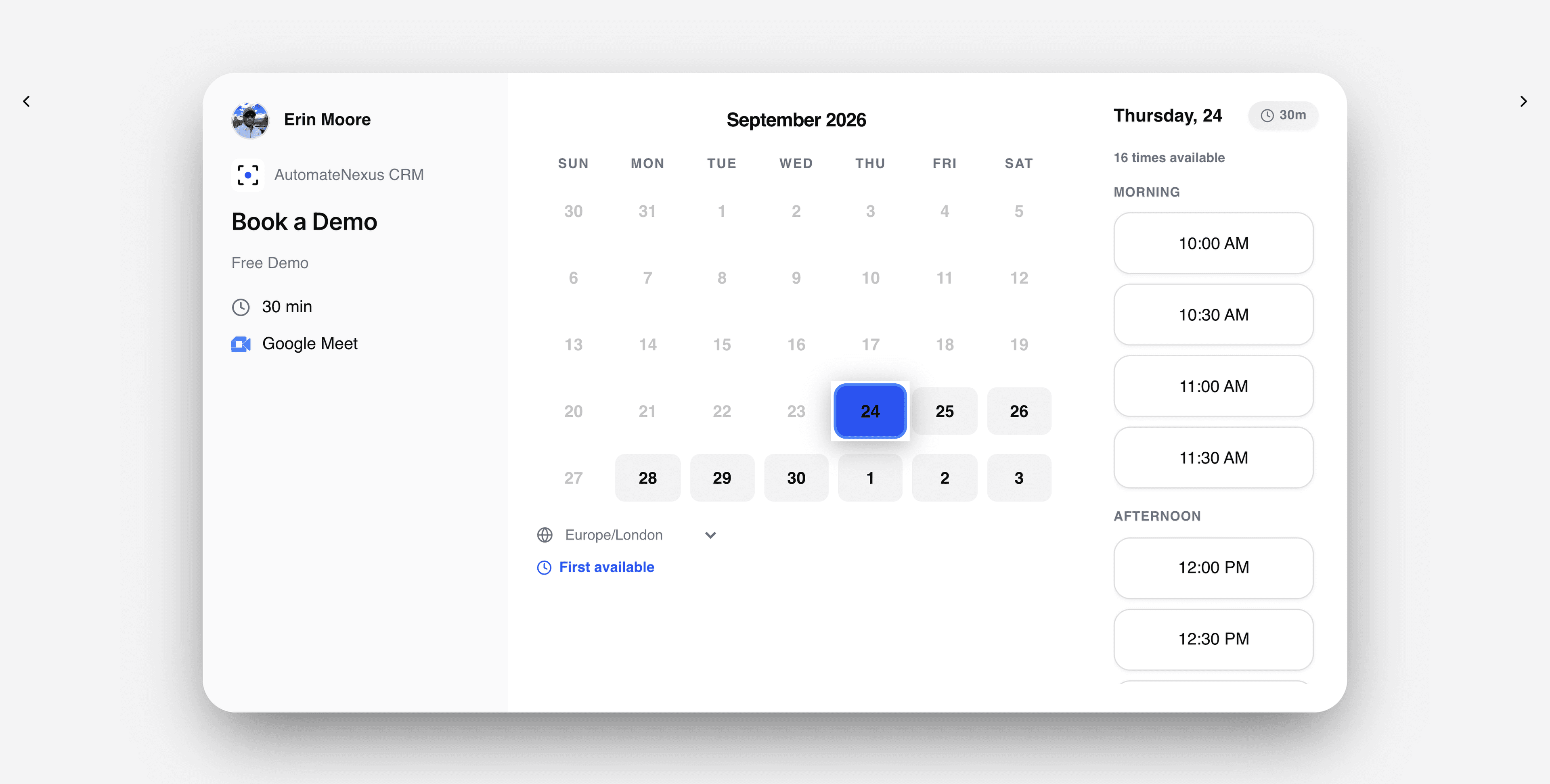
Authorize.Net, wired into your pipeline.
- 01
Bookings and store orders through Authorize.Net
When a booking or a store order needs payment, the payer pays on Authorize.Net's own hosted payment page.
- 02
A pay link that keeps working
Authorize.Net's page opens only with a token that lasts 15 minutes, so the link goes to the CRM's pay page, which asks for a fresh one each time. A link that waits in an email still works.
- 03
Confirmed with Authorize.Net
When the payer comes back, or when Authorize.Net sends its notice, the CRM finds the payment among your account's latest transactions before it marks the booking or order paid.
Connected in three steps.
- Step 01
Add your Authorize.Net keys
Settings → Integrations → Payments → Authorize.Net → Set up: the API Login ID and Transaction Key from your Authorize.Net account, and the environment, sandbox or production. Secrets are encrypted when saved and not shown again.
- Step 02
Add the Signature Key for notices
Optional: Authorize.Net signs its payment notices with a Signature Key and sends none until the account has one. Without it, a payment is confirmed when the payer comes back.
- Step 03
Make it the default
Paid bookings and store orders open your default processor. With more than one switched on, choose Make default on Authorize.Net's card.
Built to be left alone.
Your keys, encrypted
Secrets are encrypted when saved and never shown again. Change credentials on Authorize.Net's card replaces them.
Checked before it counts
A booking or order is marked paid only after the CRM asks Authorize.Net itself, so a stray or repeated notice cannot mark it paid.
Disconnect any time
Disconnecting removes the saved keys, and bookings and store orders stop opening Authorize.Net. Payments already taken are not touched.
Authorize.Net and AutomateNexus CRM, answered.
With your API Login ID and Transaction Key, saved under Settings → Integrations → Payments → Authorize.Net (the same card is under Finance → Payment Processors). Add the Signature Key as well for Authorize.Net's payment notices. Choose sandbox to try a booking first.
Paid bookings (the full price or a deposit, with tax when you set a rate) and store orders. Invoices and payment forms are paid through Stripe, which you can connect alongside Authorize.Net.
Your refund setting decides: a full refund, half, none, or you decide each time. With a full or half refund set, the CRM tells you the amount for an Authorize.Net payment, and you refund it in Authorize.Net.
Put Authorize.Net to work.
Start your 7-day free trial and connect Authorize.Net on day one. No credit card, no middleware.