Payments
Stripe + AutomateNexus CRM
Invoices, bookings, products and forms paid through Stripe Checkout.

Stripe, wired into your pipeline.
- 01
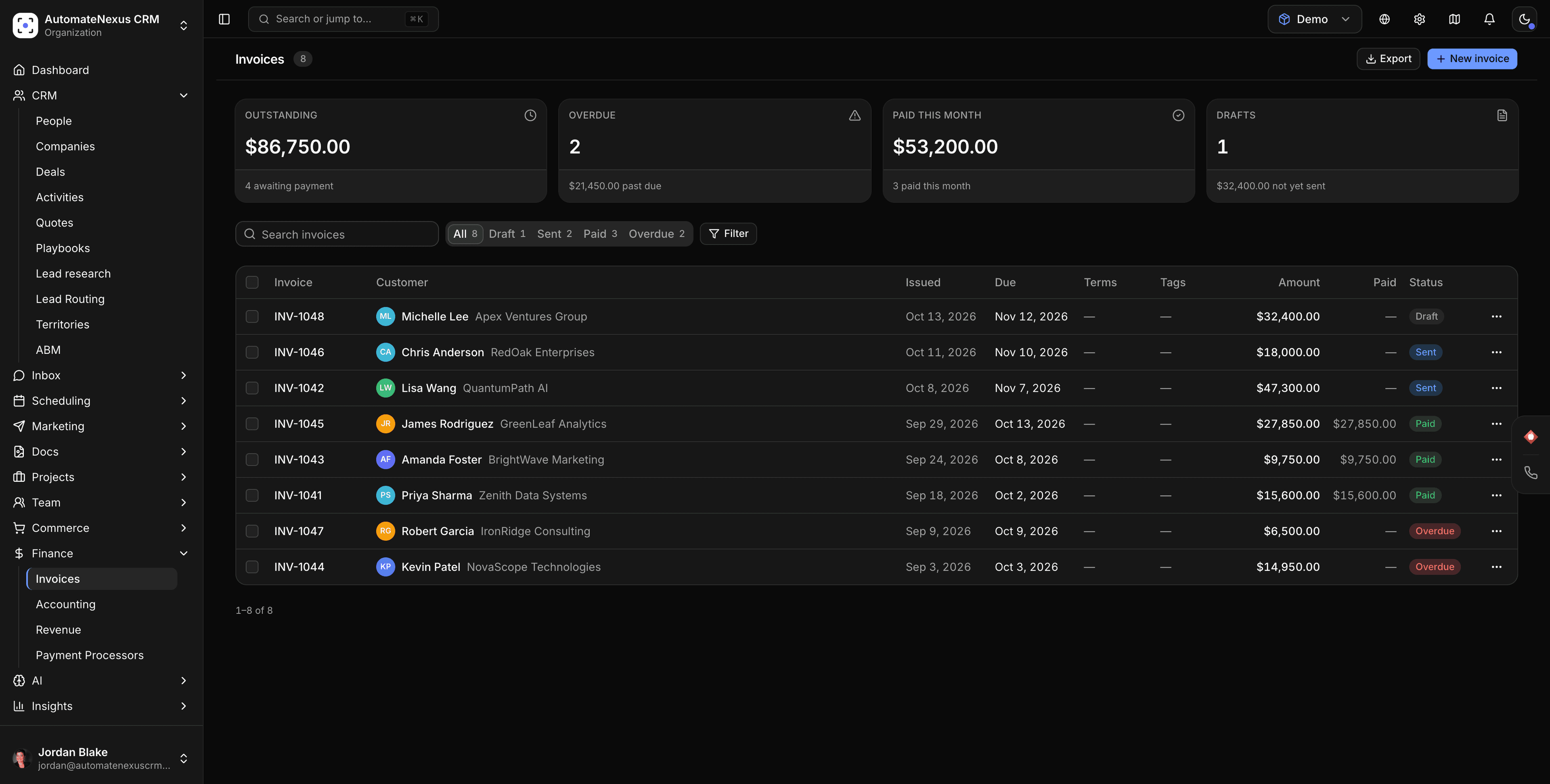
Invoices paid online
Invoices under Finance → Invoices are paid online through Stripe, whichever processor is your default. The client's Pay online link opens Stripe's hosted Checkout, and the invoice is marked paid when Stripe's webhook confirms it.
- 02
Bookings, products and forms too
Booking pages can require payment or a deposit before confirming, storefront products are paid through Stripe Checkout unless a product names another processor, and a form can carry a payment field that sends the visitor to Stripe Checkout on submit.
- 03
Test mode until you are ready
Save test keys and the card shows Test mode; run the 4242 card through an invoice or a test booking, then swap in live keys and a live webhook endpoint.
Connected in three steps.
- Step 01
Paste your Stripe keys
Settings → Integrations → Payments → Stripe: publishable key and secret key from Developers → API keys in Stripe. The secret key is stored server-side and never shown again. Click Test Connection, then Save Settings.
- Step 02
Add the webhook endpoint in Stripe
Copy the Webhook URL from the Stripe card into Developers → Webhooks in Stripe and select the events the CRM handles: checkout.session.completed, checkout.session.expired, payment_intent.succeeded and payment_intent.payment_failed. Other events are ignored.
- Step 03
Save the signing secret
Paste the endpoint's whsec_ signing secret into Webhook Secret on the Stripe card and save. Live and test endpoints are separate in Stripe; add the live one when you switch keys.
Built to be left alone.
Your keys, stored server-side
The secret key never reaches the browser after you save it; leave the field blank later to keep the saved key. The Stripe card and Finance → Payment Processors edit the same configuration.
Booking payment rules
Under Scheduling → Booking → Payments: Require Payment, Allow Deposit, Default Currency, a Refund Policy of flexible, moderate or strict, and whether to Collect Taxes.
Not only Stripe
PayPal, Square, Mollie, Razorpay, Adyen and more take payment for paid bookings and store orders. The processor marked Default under Settings → Integrations → Payments is the one they open unless a product names its own; invoices and payment forms stay on Stripe.
Where a Stripe payment shows up.
On the invoice
A confirmed Checkout marks the invoice paid and records the payment against it. With QuickBooks Online connected, payments recorded on an invoice are applied to the matching QuickBooks invoice by that sync.
On the booking
A paid booking is confirmed and its confirmation and reminder messages go out; booking workflows can then send email or SMS, create a task, log an activity or call a webhook.
On the contact
Form payments and storefront checkouts land on the contact's record. A client can also save a card during checkout, and retainer invoices are then charged automatically each cycle, with any failure noted on the invoice.
From test cards to live money.
Stripe's test cards
4242 4242 4242 4242 succeeds, 4000 0000 0000 0002 declines, 4000 0025 0000 3155 requires authentication and 4000 0000 0000 9995 fails for insufficient funds. Check the payment in your Stripe test dashboard and the update in the CRM.
Switching to live
Replace the keys on the Stripe card with pk_live_ and sk_live_ values, add a live webhook endpoint in Stripe, paste its signing secret, and run one small real transaction.
If a payment does not appear
The usual cause is a Webhook Secret that does not match the endpoint, or an endpoint created in test mode while live keys are in use. Stripe's Developers → Webhooks page shows each delivery attempt.
Stripe and AutomateNexus CRM, answered.
With your Stripe API keys, not OAuth: paste the publishable and secret keys under Settings → Integrations → Payments, click Test Connection and save, then add the CRM's webhook URL as an endpoint in Stripe and save its signing secret.
Invoices (the Pay online link opens Stripe Checkout), bookings that require payment or a deposit, products in the storefront, forms that carry a payment field, and retainer invoices charged automatically from a card the client saved.
checkout.session.completed, checkout.session.expired, payment_intent.succeeded and payment_intent.payment_failed. Select them when you add the endpoint in Stripe; anything else is ignored.
Yes. Save test keys and the card shows Test mode; use Stripe's test card numbers on an invoice or a test booking, then replace the keys and add a live webhook endpoint when you switch.
For bookings and store orders, yes: PayPal, Square, Mollie, Razorpay, Adyen and more each take payment, and the processor marked Default under Settings → Integrations → Payments is the one they open unless a product names its own. Invoices and payment forms are paid through Stripe.
Yes. Payments, invoicing and booking are on all four plans; Stripe charges its own processing fees and the CRM adds nothing on top.
Put Stripe to work.
Start your 7-day free trial and connect Stripe on day one. No credit card, no middleware.