Payments
Mollie + AutomateNexus CRM
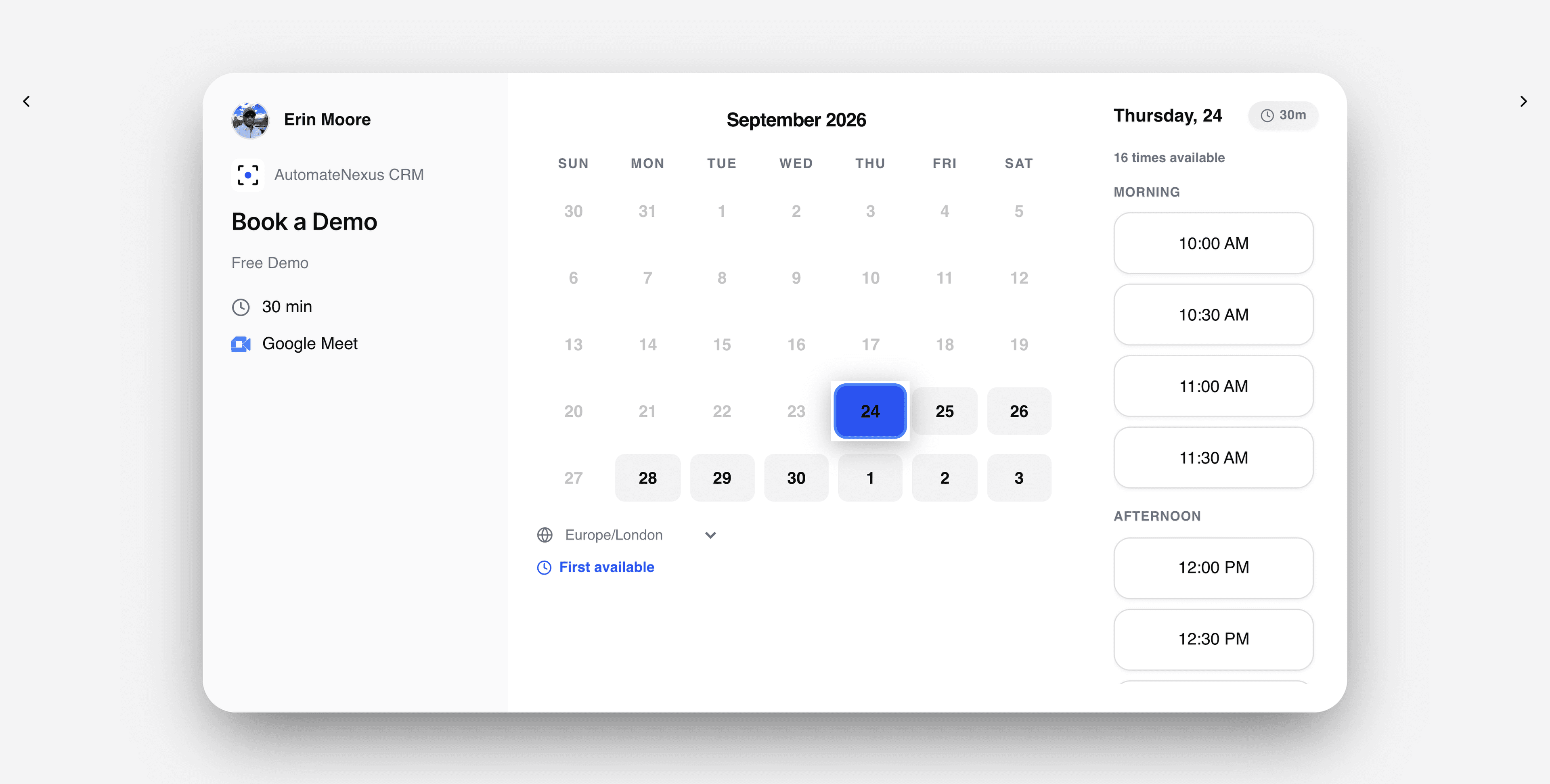
Guests pay for their booking on Mollie's own checkout.

Mollie, wired into your pipeline.
- 01
Paid bookings through Mollie
When a booking needs payment, the guest goes to Mollie's checkout and pays with the methods switched on in your Mollie account.
- 02
Confirmed with Mollie
Mollie tells the CRM when the payment changes, and the CRM checks with Mollie that the booking's own price was paid before it marks the booking paid.
- 03
The right amount in each currency
Euros and the other currencies Mollie takes, sent with the decimals Mollie expects. A currency Mollie does not take is caught before the guest is sent there.
Connected in three steps.
- Step 01
Add your Mollie API key
Settings → Integrations → Payments → Mollie → Set up. Paste the API key from your Mollie Dashboard; it is encrypted when saved and not shown again, and saving switches Mollie on.
- Step 02
Make it the default
Paid bookings open your default processor. With more than one switched on, choose Make default on Mollie's card.
- Step 03
Price your booking types
Give a booking type a price, and a deposit as a percentage or a set amount if you want one. A tax rate goes under Scheduling → Booking → Payments.
Built to be left alone.
Your keys, encrypted
Secrets are encrypted when saved and never shown again. Change credentials on Mollie's card replaces them.
Checked before it counts
A booking is marked paid only after the CRM asks Mollie itself, so a stray or repeated notice cannot mark it paid.
Disconnect any time
Disconnecting removes the saved keys and paid bookings stop opening Mollie. Payments already taken are not touched.
Mollie and AutomateNexus CRM, answered.
With your Mollie API key, saved under Settings → Integrations → Payments → Mollie. Each payment tells Mollie where to send its updates, so there is nothing to set up in Mollie. Start with your test_ key, then swap in the live_ key.
Bookings that need payment: the full price or a deposit, with tax when you set a rate. Invoices, the store and payment forms are paid through Stripe, which you can connect alongside Mollie.
Your refund setting decides: a full refund, half, none, or you decide each time. With a full or half refund set, the CRM tells you the amount for a Mollie payment, and you refund it in Mollie.
Put Mollie to work.
Start your 7-day free trial and connect Mollie on day one. No credit card, no middleware.