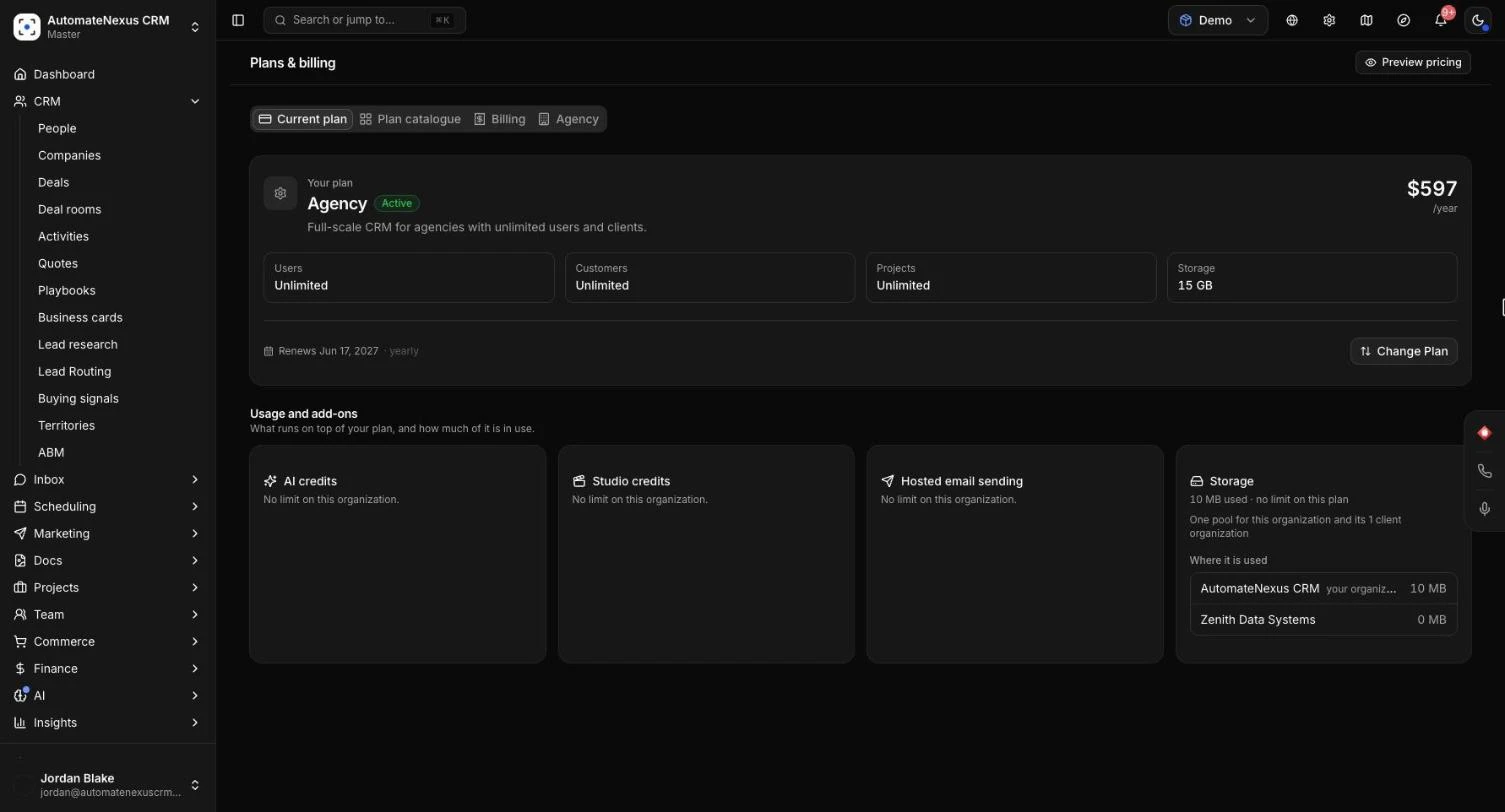
The Plans & billing screen is where you see the plan your organization is on, choose or change a plan, pay an open invoice, download invoices and add the extras that run on top of your plan: AI credits, Studio credits, hosted email sending and storage. This guide is for owners and admins, who are the only people who can choose a plan or buy anything. Most tasks here take a couple of minutes.
Before You Start#
- Open the screen from Administration → Plans in the sidebar, or from your account menu at the bottom of the sidebar with Plans & billing.
- Only an Owner or Admin can choose a plan, change it or buy add-ons. Everyone else can see the plan and how much of each add-on is in use.
- Checkout and the billing portal are on Stripe, so your card details never reach AutomateNexus CRM.
- Paying, changing or cancelling a plan is not offered in the iPhone app. Use AutomateNexus CRM in a web browser for these.
The Plans#
Every plan is the whole CRM. The plans differ in room for your team, storage and the extras named on each plan's card.
| Plan | Price |
|---|---|
| Starter | $49 a month |
| Growth | $149 a month |
| Business | $349 a month |
| Agency | $597 a month |
The Agency plan also lets you run client organizations under your own brand. See Agency guide: reselling, client billing, snapshots and white label.
No plan includes AI use or hosted email sending. AI runs on an AI provider key of your own or on AI credits, and hosted email sending is an add-on. Both are explained below.
Your Plan at a Glance#
The screen opens on the Current plan tab. At the top, Your plan shows:
- The plan's name, its status (for example Active or Trial) and its price a month or a year.
- Its limits for Users, Customers, Projects and Storage. Users are shown as in use out of allowed, for example 4 of 10.
- When the plan renews, ends or starts, with the date.
- Buttons for Manage Billing and Change Plan.
Below it, Usage and add-ons shows four cards side by side: AI credits, Studio credits, Hosted email sending and Storage. Each shows how much is in use this month and, for an admin, a way to add more.
The screen has up to three tabs: Current plan, Billing and, when your plan includes client organizations, Agency.
Choosing a Plan#
A workspace with no plan, or whose free trial has ended, shows the plans in place of the app. Everything you set up is kept while you choose.
- Compare the plan cards: each shows its price, users, storage and what it includes. The plan you tried during your trial is marked Your trial plan.
- If a plan supports yearly billing, the card shows how much you save with annual billing.
- Click Choose followed by the plan's name, for example Choose Growth. You go straight to Stripe's checkout, with nothing to fill in first.
- Pay on the checkout page. Your workspace opens as soon as the payment is confirmed. If you are sent back before Stripe confirms it, the page says Your payment is being confirmed. This page updates by itself in a moment.
If your team has more people than a plan allows, that plan's card says so (for example Your team is 12 people. This plan has room for 10.) and cannot be chosen.
Free Trials: Keep Your Trial Days#
While your free trial runs, Your plan shows a Free trial meter with the days left and the date it ends. You can keep your plan before the trial is over without losing any trial days.
- Go to Administration → Plans.
- Click Keep followed by your plan's name, for example Keep Business.
- Save your card on the checkout page.
Your card is saved but not charged. The first charge is on the day the trial would have ended, and the screen shows the date your plan starts. You can also choose a different plan with Change Plan during the trial: the dialog says Your trial carries over and gives the date of the first charge.
When a trial ends without a plan, the workspace shows Your free trial has ended with the plans below it. Everything in the workspace is saved: choose a plan and carry on where you left off.
Changing Your Plan#
- On the Current plan tab, click Change Plan.
- In Change Subscription Plan, pick a plan under Select New Plan. Plans with too little room for the people in your workspace are marked and cannot be picked.
- Check the summary: your current plan, the new plan, the Monthly Difference and the new plan's limits. Choose Monthly or Annual if the plan offers both.
- Optionally add a Reason for Change (Optional).
- Click Confirm upgrade, Confirm downgrade or Confirm switch.
If you already pay for a plan, the change happens straight away and the difference is prorated on your next invoice. If you do not pay yet, you go to checkout first.
Cancelling and Resuming#
- On Your plan, click the More billing options button (three dots) and choose Cancel subscription.
- Confirm with Cancel subscription, or click Keep plan to back out.
Your plan stays active until the end of the current billing period, then it does not renew. Until then, Resume subscription on the same card keeps it renewing as usual.
Billing and Invoices#
The Billing tab shows Billing & invoices: your plan, its price and when it renews. Click Manage payment method & invoices to open Stripe's secure billing portal, where you:
- Update your card or other payment method.
- Download invoices and receipts.
- See your full payment history.
- Change or remove add-on blocks.
Manage Billing on the Current plan tab opens the same portal. To change or cancel the plan itself, use the Current plan tab.
When a Payment Fails#
If a card payment fails, your workspace keeps working for fourteen days while the payment is tried again, so nobody is locked out without warning.
- A banner across the top says Your last payment didn't go through. and gives the date to pay by, with the days left.
- Owners and admins see Pay now, which opens the open invoice so you can pay it, and Update card, which opens the billing portal to change your card.
- Other members are asked to have an owner or admin pay the open invoice.
- Your plan shows Payment failed · update card by and the date.
If the fourteen days pass without payment, the workspace pauses and shows This workspace is paused. Everything is saved, and it reopens as soon as the open invoice is paid with Pay now.
A client organization that runs on an agency's plan does not see the payment details. In the last days before a pause, its owners and admins see that the plan with the agency needs attention, and the date it pauses unless the agency resolves it.
Add-ons#
Add-ons are bought on the Current plan tab, under Usage and add-ons. Each card works the same way:
- Use the minus and plus buttons to pick how many blocks you want. The card shows what that comes to.
- Click Add for followed by the monthly price shown, and complete checkout.
- The card says Checkout complete and shows the new amount once Stripe confirms the payment, usually within a minute.
Each card shows its block size and monthly price. You can take as many blocks as you need, and remove a block any time under Billing. Add-ons are bought by an admin of the organization that pays for the plan; an agency's add-ons are shared with its client organizations.
AI Credits#
Karrie and your AI agents run on an AI provider key of your own (OpenAI, Anthropic, Google, DeepSeek, or a model on your own computer), added under AI providers, or on AI credits. The AI credits card shows the tokens used this month and has Add AI credits.
- With a provider of your own, the card says Karrie and the agents run on it, billed by that provider, and credits are not needed.
- With neither a provider nor credits, the card says Karrie and the agents are off.
- When this month's credits run out, Karrie and the agents pause until the month turns, credits are added, or a provider of your own is connected.
See AI Provider Configuration to connect your own key.
Studio Credits#
Pictures, product photos and videos made in the Content Studio use Studio credits. The Studio credits card shows your Studio credits and has Add Studio credits.
Hosted Email Sending#
Hosted sending lets campaigns, sequences and AI agents send email without an email provider of your own. It is an add-on on every plan. Email through a mailbox or email provider you connected needs no pack.
- Without it, the Hosted email sending card says it is not on this organization and offers Add hosted sending.
- With it, the card shows how many sends have gone out this month and offers Add sending credit.
- When this month's sends are used up, hosted sending pauses until the month turns or a pack is added. Mail through your own provider keeps going.
See Email Integration Setup for the other ways to send.
Storage#
The Storage card shows how much your organization has stored out of its allowance, as a percentage and a meter, and what makes up the allowance: your plan's storage plus any extra you added.
Storage counts every file your organization keeps in AutomateNexus CRM, measured every hour: attachments, project documents, proofs and recordings, as well as site and social media, email images, signed documents, and portal and form uploads.
When Storage Fills Up#
- From 90% full, a banner says how full storage is, with Add storage (or Later to hide it for now).
- When it is full, new uploads are refused with Storage is full until storage is added or files are deleted. Nothing you have already stored is removed.
Adding Storage#
- Go to Administration → Plans and find the Storage card.
- Under Add storage, pick how much to add. The card starts on enough to make room if you are over the limit.
- Click Add for the price shown and complete checkout.
Extra storage counts as soon as it is paid for and stops when you remove it under Billing.
Shared Storage for an Agency and Its Clients#
An agency and the client organizations on its plan share one storage allowance, the same way they share hosted email sending.
- The agency's card says it is one pool for the organization and its client organizations, lists Where it is used with what each one holds, and adds storage for all of them in one place.
- A client organization sees how much of the shared allowance is in use and that storage is added by an admin of the agency. Its full-storage message asks the agency to add storage.
- A client organization with a plan of its own keeps its own allowance.
Keeping Files in Your Own Storage#
Owners and admins can keep the files people add to records, tasks, tickets, documents, deliverables and invoices in a storage bucket of your own: Amazon S3, Cloudflare R2, Backblaze B2, Wasabi or MinIO. Files kept there do not count toward your storage in AutomateNexus CRM; they are yours to back up and pay for.
- Go to Administration → Integrations and open Files.
- Under Where this workspace keeps its files, open the Your own storage card.
- Fill in Endpoint (the service's address, without the bucket), Bucket, Region, Access key ID, Secret access key and, if you like, Folder (optional).
- For Cloudflare R2 or MinIO, switch on Bucket in the path (Cloudflare R2, MinIO).
- Click Save. A test runs straight away: it puts a file in the bucket, reads it back, removes it, and checks that the app can upload from the browser.
- Switch the card on so new files are kept in your bucket.
The key needs to read, write and delete objects in this bucket, nothing more. It is stored encrypted and never shown again. If the browser upload check fails, the card shows a CORS rule with Copy the rule: add it to the bucket's Permissions or CORS settings, then click Test again.
Switched off, new files go back to storage in AutomateNexus CRM, and files already in your bucket stay readable.
Tips#
Troubleshooting#
- "Only an owner or admin of this workspace can choose a plan": plans and add-ons are bought by owners and admins. Ask one of them.
- "This workspace is on ... 's plan": your workspace is a client organization run by an agency, so there is no plan to choose here. Ask the agency about users or features.
- A plan cannot be chosen: your team has more people than that plan allows. Choose a larger plan, or remove members or waiting invitations first.
- "Checkout complete" but the plan or add-on has not changed: Stripe is still confirming the payment. It usually shows within a minute; refresh the page if it has not.
- "Checkout canceled. No changes were made to your subscription.": you left checkout before paying. Start again when you are ready.
- "Storage is full": add storage on the Storage card, delete files you no longer need, or keep new files in your own bucket.
- Karrie and the agents are off or paused: connect an AI provider of your own, or add AI credits.
- "Billing couldn't be loaded": check your connection and click Try again.
- Your own storage test fails: check the endpoint, bucket and keys, make sure the key can read, write and delete, and add the CORS rule the card shows.