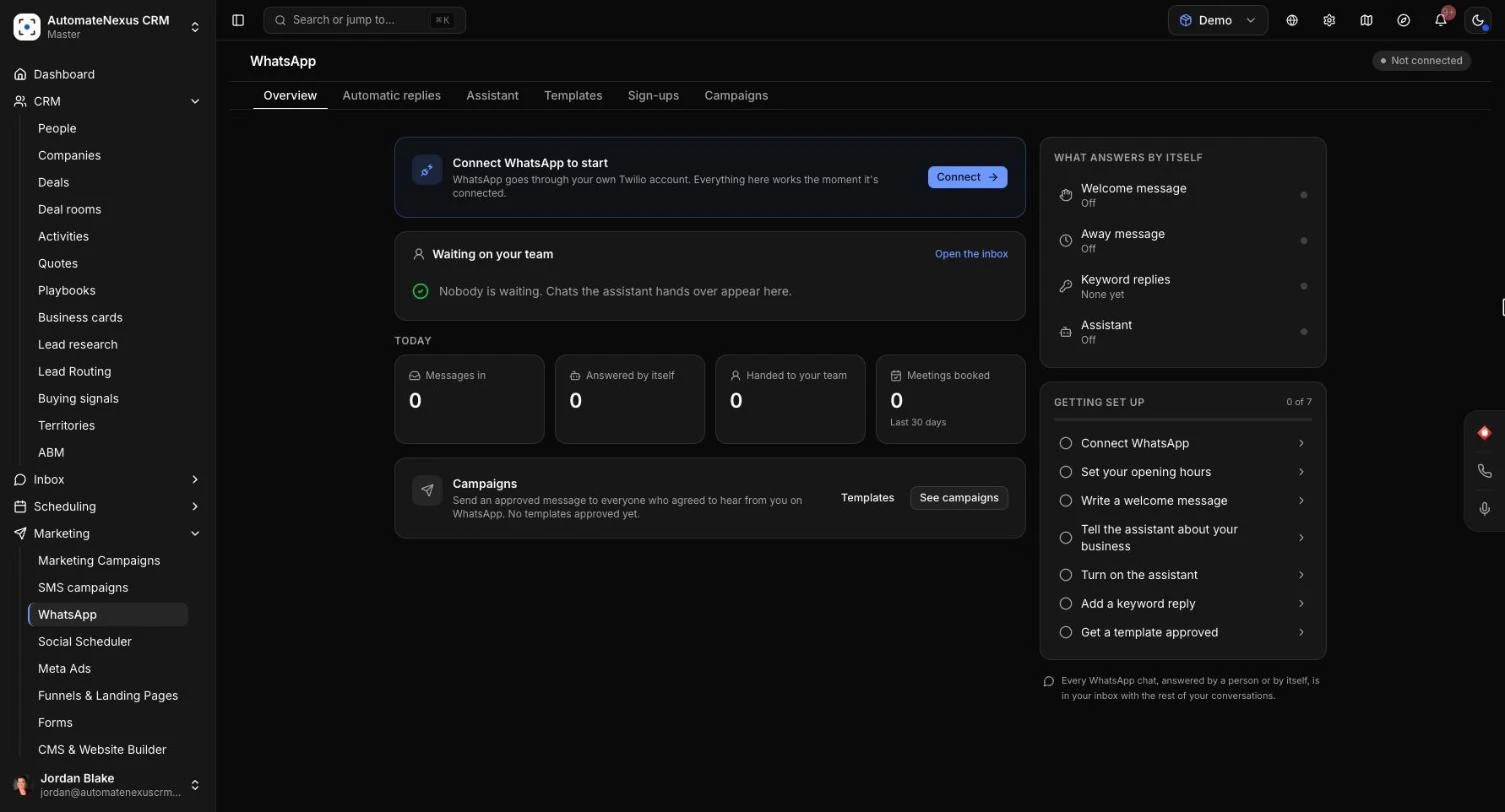
AutomateNexus CRM puts everything for WhatsApp on one page: replies that go out by themselves, an assistant that can answer and book meetings, the templates WhatsApp approves, ways to get people to sign up, and campaigns. The chats themselves sit in your inbox next to your texts and calls. Setting it up takes about 20 minutes, plus WhatsApp's template approval (usually minutes, sometimes a day).
Before You Start#
- WhatsApp sends through your own Twilio account, like your texts. Connect Twilio first (see Communication Integrations).
- Only an owner or admin can change WhatsApp's settings.
- The assistant needs AI: your own AI key, or AI credits under Plans & billing.
WhatsApp's Rules in Short#
- Within 24 hours of someone's last message, you can reply freely.
- After that, or to start a conversation, WhatsApp only delivers a template it has approved, and only to people whose WhatsApp opt-in is recorded on their contact or customer record.
- Anyone who sends STOP gets no more WhatsApp messages from you until they write again. START turns them back on. Both are handled for you.
Step 1: Connect WhatsApp#
- Open Marketing → WhatsApp. If it is not connected yet, click Connect on the Connect WhatsApp to start card. This opens Administration → Integrations on Communications.
- Expand the WhatsApp card. Under Sending from, choose Twilio Sandbox to try it today with no approval, or Your WhatsApp Business number for a sender registered in your Twilio console, entered in WhatsApp sender number in full international format (for example +15551234567).
- Copy the Incoming message webhook and paste it into Twilio, as the card tells you, with HTTP POST.
- Click Save and turn on.
The page then shows Sandbox or Live on your number. On the Sandbox, only people who joined it can message you, so switch to your own number before sharing anything with customers.
The Overview Tab#
Overview shows the chats Waiting on your team (handed over by the assistant), today's figures, What answers by itself, and a Getting set up checklist.
Automatic Replies#
On the Automatic replies tab, each reply is shown beside a phone preview as WhatsApp will show it. Write it, click Save, then turn it on with its switch.
- Welcome message: sent once, the first time someone messages you.
- Away message and opening hours: sent when someone writes while you are closed. Set your Opening hours here; the assistant and workflows use them too. Insert When you're back to tell people when you next open, and choose how often one person can get it in Send it to the same person at most once every.
- Keyword replies: a word in a message gets its own reply. Start from Prices, Opening hours or Join our updates, or click Add a keyword reply. The first match in the list answers.
Setting Up a Keyword Reply#
- Give it a Name and add the Words that start it (type a word and press Enter).
- Choose how the word must appear: Contains the word, Starts with the word or Is exactly the word.
- Write The reply.
- Under Also, you can Tag them, Start a workflow, choose who to Give the chat to, Hand the chat to the team, or Record that they agreed to WhatsApp messages (for a word like JOIN).
- Click Save.
Buttons and Lists#
Any automatic reply can be Text only, have Buttons (up to 3) or a List (up to 10 choices behind one button). For each button or choice, pick what a tap does: Send a reply, Offer meeting times, Let the assistant answer, Hand the chat to the team, Start a workflow or Nothing else. Counters show WhatsApp's limits as you type (1,024 characters for a message, 20 for a button).
The Assistant#
On the Assistant tab, choose What the assistant does:
- Off: your team answers every chat. Keyword replies, the welcome and the away message still work.
- Drafts for your team: a reply is written for each message for someone to check and send.
- Answers by itself: it replies on its own, books meetings and hands over when it isn't sure. Choose All the time or Only when you're closed.
It stays out of a chat once your team has replied there, and never makes up a price, offer or promise.
What It Knows#
- About the business: what you do, where, for whom and how you price. Click Write it if it is empty.
- Help articles: the public articles in your Knowledge Hub.
- Your guidance: how to sound, what to mention and what to leave to the team.
What It May Do and When It Hands Over#
- Book meetings: it offers free times from the booking page you choose and books the one they tap.
- Fill in their details: a name, email or company they mention fills an empty field on their record.
- Handing over: when someone asks for a person, it isn't sure, or a chat runs long, it stops and tells your team. Choose who to Give the chat to and how many replies it may send per chat and per day.
Click Save when you are done.
Templates#
A template is a message WhatsApp approves once, for writing to people first.
- On the Templates tab, click New template, or start from Appointment reminder, Pick the chat back up, Quote follow-up or Seasonal offer.
- Enter a Name and Language, and choose What kind of message: About something they did (WhatsApp calls these Utility and charges less for them) or An offer or news (Marketing, sent only to people who agreed).
- Write the Message. Click Add a blank for anything that changes per person, like a name or a date, and give each blank a realistic example: WhatsApp checks the message with it.
- Add an optional Header, Footer and Buttons. How it looks shows it on a phone as you write.
- Click Send to WhatsApp for approval.
Each template shows Approved, Waiting for WhatsApp or Turned down with WhatsApp's reason. Whoever sent it gets a notification when WhatsApp decides. A sent template can't be changed, so open it and click Make a copy to send a changed version. On an approved one, click Send in a campaign.
Sign-ups#
Campaigns only go to people who agreed, so the Sign-ups tab gives them an easy way to say yes.
- Under The join word, click Turn on JOIN. Anyone who sends JOIN is recorded as agreeing and gets your thank-you.
- Your link opens a chat with JOIN already written. Copy it into your emails, social profiles and invoices.
- QR code: click Download picture for your counter, flyers, receipts and van.
- A button for your website: choose Button or Corner bubble, set the words, click Copy the code and paste it into any website builder that lets you add HTML.
Campaigns#
A campaign sends one of your approved templates to everyone who agreed to WhatsApp messages. Open the Campaigns tab and click New campaign:
- Name it (only your team sees this).
- Audience: choose All contacts or All customers, and narrow it with Only those who match (status or lead score). The count shows who has agreed; those who have not, or replied STOP, or are blocked, are left out.
- Message: choose an Approved template and fill in its blanks from their record (such as their first name or company) or with the same text for everyone, plus what to use when a record is empty. The Preview shows it for a sample person.
- When: Send now or Send later with a date and time, and an optional Pace in messages a minute.
- Review: check it, then click Send campaign or Schedule campaign.
Agreement and STOP are checked again just before each message goes. Each campaign shows how many were sent, delivered and read, and Results lists each person and why anyone was left out. Every message lands in that person's WhatsApp conversation in your inbox, so replies carry on there.
Replying in the Inbox#
WhatsApp chats are in Inbox → Phone & texts, one thread per person with their texts, WhatsApp messages and calls together. Someone who writes in for the first time is added as a new lead.
- Open the person, choose WhatsApp under the message box (available once they have written to you on WhatsApp), type your reply and click Send.
- If it has been more than 24 hours since they last wrote, choose an approved template, fill in its blanks and send that instead.
Starting a Conversation#
To message someone first, open their contact or customer record and click WhatsApp. Choose an approved template and fill in its blanks. If their opt-in isn't recorded yet, tick that they agreed to receive WhatsApp messages from you; it is saved on their record before the template goes out. Then click Send.
WhatsApp in Workflows#
- Use WhatsApp Received as a workflow's trigger. It can start for every message, only when the message contains a word you choose (Only if the message contains), or just for the first one (First message of a conversation only). STOP and START never start a workflow.
- Add a Send WhatsApp step to send a message or an approved template.
- Under Projects → Workflows, the Templates tab has WhatsApp Away Message, WhatsApp Keyword Reply and Inbound WhatsApp → Task for the Team ready to use.
Troubleshooting#
- "Connect Twilio first" or "Switch Twilio on first": WhatsApp sends through your Twilio account. Connect it, or turn its switch on, under Voice & SMS on the same page.
- "You have no approved WhatsApp templates yet.": make one on the Templates tab and wait for Approved.
- "Nobody in this audience has agreed to WhatsApp messages yet": turn on the join word and share your link, or record their agreement on their contact or customer record.
- "… sent STOP, so nothing can be sent.": you can reply again if they write to you.
- The assistant does not answer: connect your own AI key or add AI credits, and write About the business.