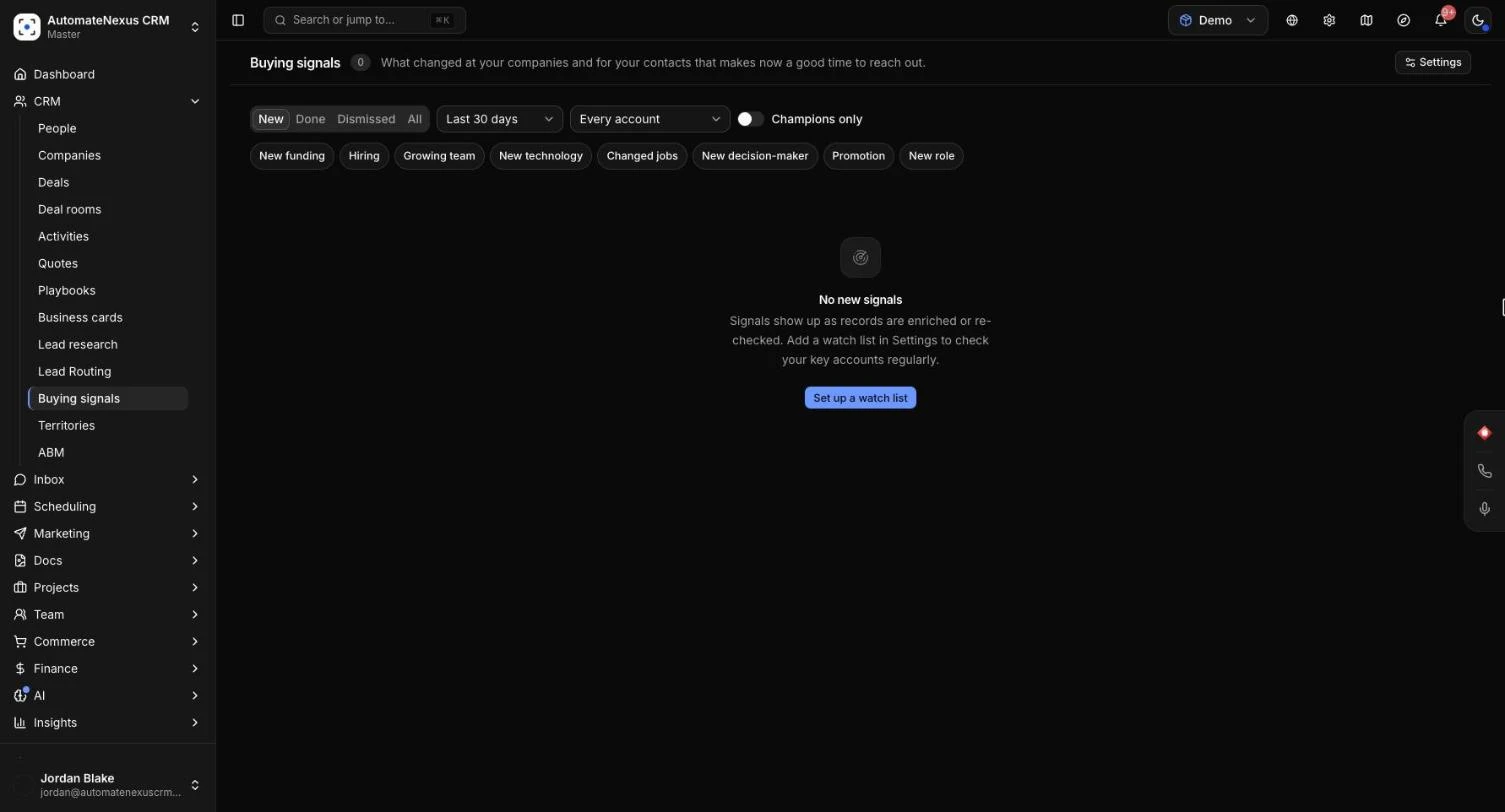
Buying signals show you what changed at your companies and for your contacts that makes now a good time to reach out: new funding, hiring, a growing team, a new technology on their website, a new job title or promotion, someone moving to another company, or a new senior person at an account. Each signal comes with a suggested next step, can have a first line written by the AI, and can put the person straight into an AI SDR campaign. This guide is for anyone who sells or follows up with accounts, and for the owners and admins who set signals up. Allow about 10 minutes.
Before You Start#
- Most signals come from Kuration. When Kuration fills in or re-checks a company or a person, what changed shows up as a signal, so nothing extra is bought to find them. Connect Kuration in CRM → Lead research (see Lead research and enrichment).
- Without Kuration you still get one kind: directors, VPs and C-level people added at companies you already have show up as New decision-maker, marked From your CRM.
- Everyone can read the feed and mark signals done. Settings on the page, and Add to SDR campaign, are for owners and admins.
What Counts as a Signal#
There are eight kinds. Four are about a company and four are about a person.
| Signal | What it means |
|---|---|
| New funding | A company raised a new round, or more money. |
| Hiring | A company started hiring. |
| Growing team | A company has at least a tenth more people, and at least five more. |
| New technology | A new technology turned up on a company's website. |
| Changed jobs | Somebody's LinkedIn profile says they now work at another company. |
| New decision-maker | A director, VP or C-level person is new at a company you already have. |
| Promotion | Somebody's new job title is more senior. |
| New role | Somebody has a new job title. |
A few rules keep the feed to real news:
- The first time a record is enriched, what Kuration finds is not treated as a change, so it gives no signals. The exceptions are funding dated in the last 90 days and a job change.
- Each change is a signal once, never twice.
- A new decision-maker counts only when the person was added in the last 30 days at a company that was in your CRM at least a week before them. People brought in by an import do not count, since they were there before it.
- If an enrichment is undone, the signals it made that nobody has acted on yet are taken back too.
Anyone marked as a Champion (a person on a won deal, or tagged Champion) carries a Champion badge on their signals.
Reading the Feed#
Go to CRM → Buying signals. Each card shows:
- A headline that opens the record, for example "Acme raised a Series A round" or "Sam Lee was promoted to VP of Sales".
- The kind of signal, the company for a person's signal, and how long ago it was found.
- What it was before, where that is known, such as Was at their old company or Was their old job title.
- A suggested next step, written for that kind of signal. A champion who changed jobs gets their own: they bought from you before, so offer to help their new team the same way.
Filters#
- The tabs New, Done, Dismissed and All. The page opens on New.
- The time: Last 7 days, Last 30 days (the default), Last 90 days or Any time.
- An account list: Every account, or only records with one of your tags.
- Champions only, to see just your champions.
- A button for each kind of signal. Tick one or more to see only those.
Click Clear filters to go back to the defaults.
Acting on a Signal#
- Read the suggested next step, then click Open record to see the person or company.
- Click Draft opener and the AI writes the first lines of an email about that news, in the box Opener written by AI. Click Copy to use it, or Write again for another. The opener is kept on the signal, so a teammate who opens it later sees it too. Nothing is sent to anyone.
- Owners and admins can click Add to SDR campaign, pick a Campaign and click Add. For a company's signal, the people saved at that company go in. Nothing is sent then: the campaign writes to them once it runs, within its limits, and its research reads the signal so the message opens with that news.
- When you have dealt with it, click Done. If it is not worth acting on, click Dismiss. Either one moves it off the New tab, and Back to new brings it back.
Signals also appear on the record's timeline as Buying signal, under the Signals filter.
Settings (Owners and Admins)#
Click Settings at the top of the page.
Signals and lead score points#
Untick any kind you do not want to hear about. For each kind you keep, set Points from 0 to 20. The points are added to the lead score of the people a signal is about (for a company, its people) for 30 days. With 0, the signal still shows and the score stays as it is. A dismissed signal adds nothing.
Watch list#
A watch list has Kuration re-check your key accounts every so often, looking only for what signals are made of: a company's funding, hiring, team size and technologies, and a person's job.
- Under Records with the tag, choose the tag that marks your key accounts.
- Under How often, choose Every week, Every two weeks, Every month, Every two months or Every three months.
- Switch on Watch champions for job changes to have people on a won deal, and people tagged Champion, re-checked too, so you hear when they move to a new company.
- Click Save.
Each check uses Kuration credits on your own Kuration account, and checks count toward the daily number of automatic enrichments set in Lead research.
Start a Workflow From a Signal#
The Signal Detected trigger starts a workflow when a buying signal is found. The workflow runs on the record the signal is about: the company or the person. In the trigger you can choose:
- Signals: the kinds it listens for. None ticked means every signal.
- Records: People and companies, People or Companies.
- Only for these account lists: only records with one of these tags, or whose company has one.
- Only champions: only people on a won deal, or tagged Champion.
Since each signal is news of its own, the trigger runs every time by default. In the workflow's steps, {{record.signal_kind}} says which kind of signal it was. See Workflow Builder.
Troubleshooting#
- "No new signals" with Kuration not connected: most signals come from Kuration. Click Open Lead research to connect it.
- "No new signals" with Kuration connected: signals show up as records are enriched or re-checked. An owner or admin can click Set up a watch list to check your key accounts regularly.
- "No signals match": try another filter, or a longer time, or click Clear filters.
- "No opener was written": the message under it says why, for example that AI is not set up or credits have run out. Check your AI provider or credits and try again.
- "Nobody added" when adding to a campaign: a campaign writes to people saved as contacts. For a company, add the people you want to reach first.
- No campaign to pick: make one in AI → AI Team → SDR first.
- No Settings button: settings are for owners and admins.