Overview#
AI Meeting Notes turns a meeting into a transcript, a summary and a list of action items, filed on the meeting record in AutomateNexus CRM. Nothing joins your call as a participant. You either record from your own microphone, in the room or on any video call, or you connect Zoom and let its cloud recordings arrive on their own.
There is no minute cap on any plan. Transcription runs on your own device, at no cost and with the audio never leaving your machine, or in the cloud through your own OpenAI, Groq or Deepgram key. AutomateNexus CRM does not meter or bill transcription.
You will find it under Scheduling → AI Notetaker in the sidebar. The Meeting notes page lists every meeting with a recording or transcript, with a search box and filters for platform and transcription status.
Two Ways to Capture a Meeting#
- Record meeting — records through your microphone, in the browser or in the desktop app. It works for in-person meetings, phone calls and any video platform, because it does not depend on the platform at all.
- Zoom auto-notes — for meetings you host on Zoom with cloud recording turned on. Zoom records to its own cloud; when the meeting ends, AutomateNexus CRM collects the transcript and writes the summary. No bot joins.
Google Meet, Microsoft Teams and other platforms cannot be captured automatically. For those, use Record meeting.
Prerequisites#
- A browser that can record audio: Chrome, Edge or Safari. The Mac desktop app records the same way.
- Microphone permission for AutomateNexus CRM when the browser asks for it.
- For cloud transcription, one of these keys: a Deepgram key on the Deepgram card under Settings → Integrations → Communications, or an OpenAI or Groq key under Settings → Integrations → Automation, in the AI providers section. See AI Provider Configuration. On-device transcription needs no key.
- For Zoom auto-notes, a connected Zoom account (see Video Conferencing Setup) with cloud recording enabled on the account that hosts the call.
Choosing Where Transcription Runs#
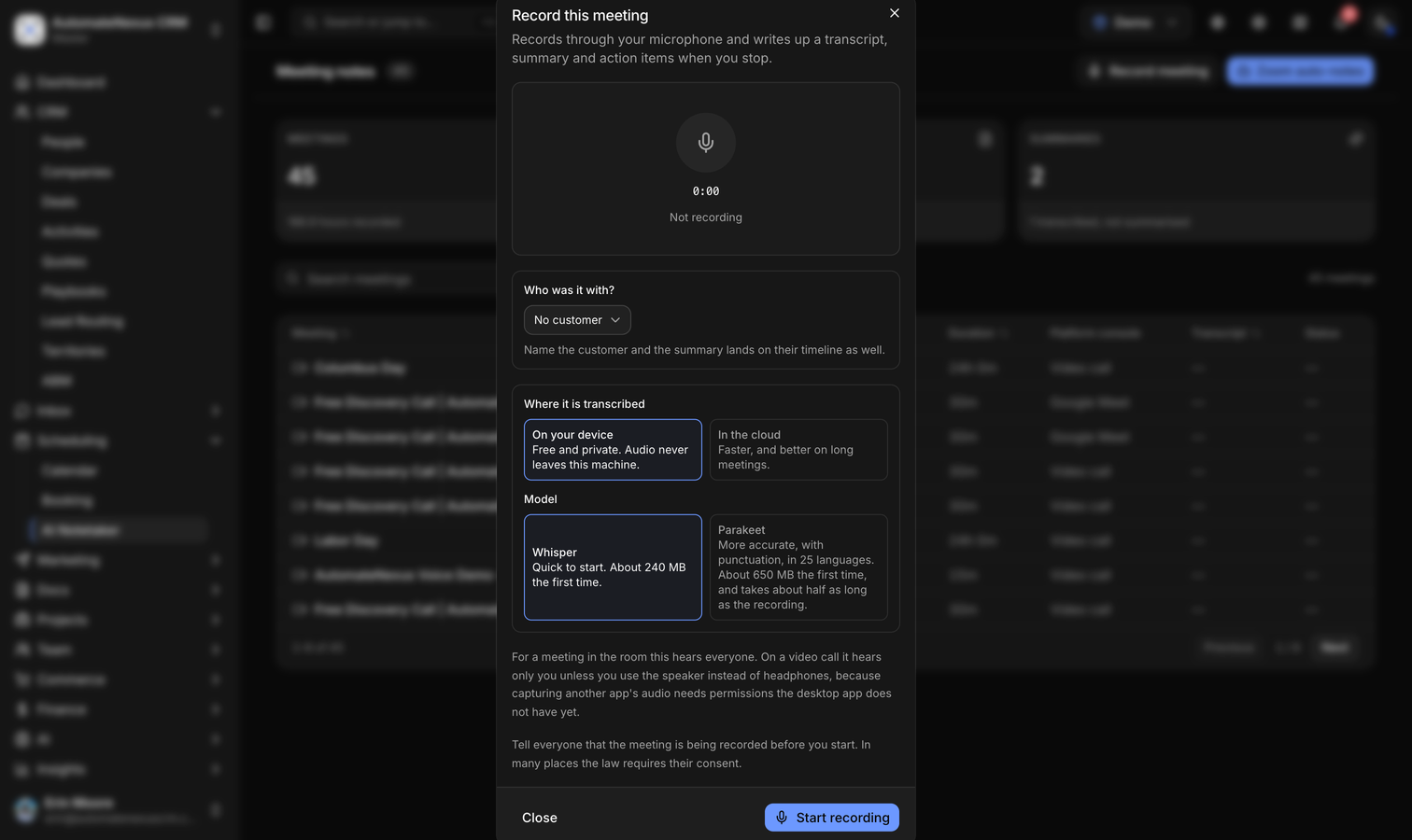
The Record dialog asks two things before you start: where the audio is transcribed, and which model does it. Your choice is remembered for next time.
On your device#
Free and private. The audio never leaves your machine; only the finished text is sent to AutomateNexus CRM. The model is downloaded once and cached by the browser.
- Whisper — quick to start. About 240 MB the first time.
- Parakeet — more accurate, with punctuation, in 25 languages. About 650 MB the first time, and it takes about half as long as the recording to finish.
On-device transcription uses your computer's graphics processor where the browser allows it and is slower on browsers that do not. Long recordings take longer to process, and speakers are not told apart.
In the cloud#
Faster, and better on long meetings. The audio is sent to the provider you choose, on your own key, and AutomateNexus CRM adds no markup.
- Deepgram Nova-3 — tells the speakers apart and takes recordings of any length. Uses the Deepgram key from Settings → Integrations → Communications.
- Groq Whisper — Whisper Large v3 Turbo, fast and inexpensive, on your Groq key.
- OpenAI Whisper — on your OpenAI key.
If no cloud key is set, the dialog says so and offers the on-device models instead. A cloud recording cannot start without a key, so nothing is lost after the fact.
Recording a Meeting from Your Microphone#
- Open Scheduling → AI Notetaker and click Record meeting.
- Answer Which meeting is this? when a calendar meeting falls within twelve hours of now: pick it and the notes go on that meeting record, or choose Not on the calendar to start a new entry. With no calendar meeting selected, answer Who was it with? and pick the customer; the summary then lands on their timeline as well.
- Choose On your device or In the cloud, then pick a model.
- Tell everyone that the meeting is being recorded. In many places the law requires their consent.
- Click Start recording. The microphone indicator moves with the sound level, so a muted or wrong microphone is obvious straight away rather than after an empty transcript comes back.
- Click Stop and transcribe when the meeting ends. An on-device recording is transcribed right there and the text is uploaded; a cloud recording uploads the audio to the provider you chose. The dialog shows Recording saved when it is done.
The summary is written a few minutes later. The Meeting notes list refreshes on its own while a recording is being processed, and if a step fails the entry says so instead of quietly disappearing. A recording started as a new entry is given a proper title from the summary once it is written.
What the microphone hears. For a meeting in the room it hears everyone. On a video call it hears only you unless you use the speaker instead of headphones, because capturing another application's audio needs permissions the desktop app does not have yet.
Automatic Notes for Zoom Meetings#
- Connect your Zoom account under Settings → Integrations → Video Conferencing. The connection is how AutomateNexus CRM recognizes which recordings are yours.
- In Zoom, turn on cloud recording for the account that hosts the meetings. Local recordings on a computer are not picked up.
- Host the meeting on Zoom and record to the cloud as usual.
- When Zoom finishes processing the recording, AutomateNexus CRM pulls the transcript, creates the meeting entry or finds the existing one, and writes the summary and action items. Zoom's transcript comes free with cloud recording, so no transcription key is needed.
You can also register an upcoming Zoom meeting in advance: click Zoom auto-notes, paste the meeting link and, if you like, link it to a meeting record. Registering is optional; the notes arrive either way once the recording is complete.
Reading the Notes#
Click a meeting to open it. The header shows the duration and the number of transcript entries, action items and decisions; the tabs hold the detail.
- Overview — the AI summary, the insights drawn from it, the speakers and the participants.
- Transcript — every entry with its timestamp and speaker. Speaker names come from Deepgram or from Zoom's own transcript. Use Search transcript to find a phrase, or Copy all.
- Action items — the tasks the model extracted, with an owner and a due date where one was said, an at-a-glance count of high-priority, assigned and dated items, and the decisions made.
- Recording — the audio, when there is one, with a download link and the recording details.
- Ask — type a question such as "What did we agree about the price?" and the answer comes from this meeting's transcript. Questions and answers are not stored. Ask uses the AI provider configured for your workspace.
Sharing the Notes#
- Copy summary — copies the summary to the clipboard.
- Notes (.md) — downloads the summary, action items and full transcript as a Markdown file.
- Email — opens a new message in your own mail program with the notes in the body, so it goes from your address with nothing to set up.
- Recording — downloads the audio when a cloud recording exists.
Where the Notes Go#
- The meeting record — the transcript, summary and action items live on the meeting, whether it came from the calendar, was created when you pressed record, or was created from a Zoom recording.
- The customer's timeline — when the meeting is linked to a customer, an AI Meeting Notes activity is added to their timeline with the summary, so the conversation sits next to their emails, calls and deals.
- The Meeting notes page — every recorded meeting in one list, searchable by title and filterable by platform and by whether it has a transcript.
Privacy and Consent#
- On-device transcription keeps the audio on your computer. Only the text is uploaded, so there is no recording on a server to manage later.
- Cloud transcription sends the audio to the provider you chose, under your own account and key. The recording is kept privately in your workspace so you can play or download it from the Recording tab.
- Zoom recordings stay in Zoom's cloud under your Zoom account; AutomateNexus CRM reads the transcript.
- Recording laws differ from place to place. Tell every participant that the meeting is being recorded before you start; in many places their consent is required.
Troubleshooting#
- "This browser cannot record audio." Use Chrome, Edge or Safari, or the desktop app.
- "Waiting for microphone access" stays on screen. The browser is asking for permission, or it was refused earlier. Allow the microphone for AutomateNexus CRM in the browser's site settings and try again.
- The other side of a video call is missing. The microphone captured only your voice. Use the speaker rather than headphones, or host the call on Zoom with cloud recording.
- On-device transcription is slow. The first run downloads the model (about 240 MB for Whisper, 650 MB for Parakeet), and browsers without access to the graphics processor transcribe more slowly. For long meetings, cloud transcription is faster.
- The cloud option is unavailable. No Deepgram, OpenAI or Groq key is set. Add one, or record on your device.
- No summary yet. The summary is written after the recording is processed, usually within a few minutes. The list refreshes on its own; if a step failed, the entry says so.
- A Zoom meeting did not appear. Check that the Zoom account that hosted the call is the one connected under Settings, and that cloud recording (not local recording) was on for that meeting. Notes arrive only after Zoom finishes processing the recording.
Frequently Asked Questions#
Does a bot join my meetings?#
No. Recording happens from your own microphone, or through Zoom's own cloud recording. There is never an extra participant in the call.
How many minutes are included?#
There is no minute cap on any plan. On-device transcription is free, and cloud transcription is billed by your own provider at their rates.
Which languages are supported?#
The Whisper models, on your device or in the cloud, handle most widely spoken languages. Parakeet covers 25 languages with punctuation. Deepgram Nova-3 detects the language automatically.
Can I record an in-person meeting?#
Yes. That is the case the microphone handles best: in a room it hears everyone at the table.
Can I use it in the desktop app?#
Yes. The Mac desktop app records from the microphone in the same way, with the same on-device and cloud options.
Can I ask questions about a meeting afterwards?#
Yes. Open the meeting and use the Ask tab. Answers come from that meeting's transcript.
Related Articles#
- Video Conferencing Setup — Connect Zoom so cloud recordings turn into notes automatically.
- AI Provider Configuration — Add the OpenAI or Groq key used for cloud transcription and the Ask tab.
- Schedule & Booking — The calendar meetings that recordings attach to.
- Unified Contact Timeline — Where a customer's meeting notes appear alongside their other activity.