AI-Powered Support#
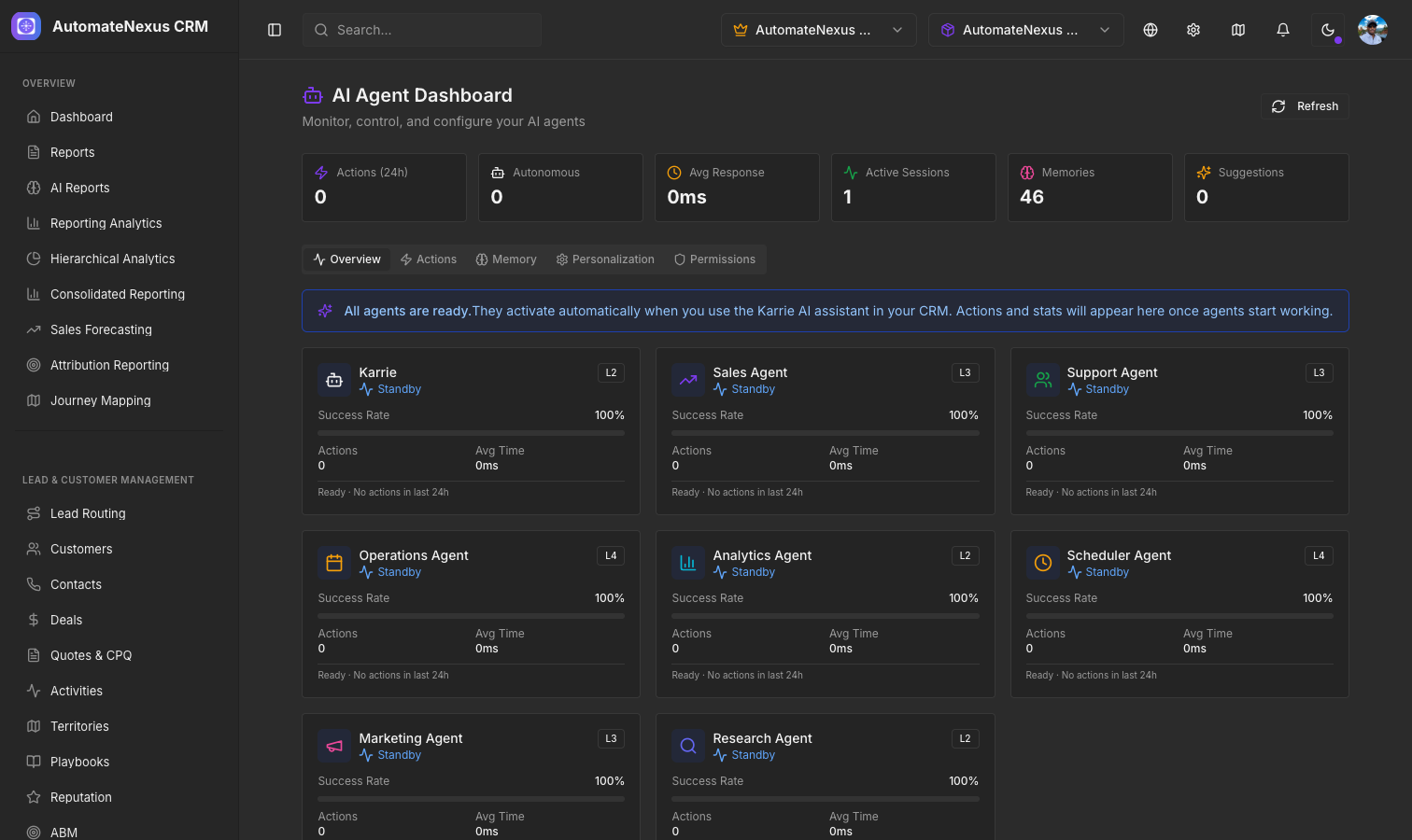
AutomateNexus CRM AI Agents work your CRM on a schedule, when records change, or on demand, and the website Messenger answers visitors' questions from your public help articles before handing the chat to your team. Together they handle common questions, route what needs a person, and keep going around the clock.
Setting Up AI Agents#
Navigate to AI → AI Agents and click New agent, or pick one of the cards under Start from a template. The agent editor has these sections:
- Identity — Give the agent a Name, a Role and a Description
- Instructions — The standing brief the agent works from on every run: its goals, its tone and what to leave alone
- Model — Which model runs the agent. Organization default follows your primary AI provider, and you can set a Response length and a Creativity level
- Tools — What the agent may do. Reading the CRM is always available
- Autonomy — Supervised, Semi-autonomous or Autonomous: how much of the agent's work runs without a person approving it. Only organization admins can change the level
- Triggers & schedule — What starts a run: Scheduled runs from a preset or a cron expression (UTC). You can always start a run by hand from the agent's page
- Limits — A Monthly budget and Actions per minute. The agent pauses itself when it reaches the monthly budget
The Email & phone tab on the same page holds the agents' email and phone settings, and AI → Agent Analytics shows how they are doing.
Agent Approvals#
Actions an agent may not take on its own wait in AI → Agent Approvals. The Pending tab lists what needs a decision, with the count in the page header, and History keeps what has already been decided.
Knowledge Base Integration#
The website Messenger's AI answers first, only from your public help articles and the guidance you give it, and hands the chat to your team when it cannot answer or the visitor asks for a person. Once a teammate replies, the AI stays out of that chat, and each chat gets up to 20 AI answers before it goes to your team. Turn it on under Inbox → Support Hub → Messenger, in the AI answers card: switch on Answer with AI, give it a Name, and write its Guidance (opening hours, what you sell, what never to promise). It runs on your organization's AI provider, or on AI credits when you have none; with neither, every chat goes straight to your team. Keep your public help articles updated to improve its answers.
Support Hub#
The Support Hub, under Inbox → Support Hub, provides a unified view of all support interactions, with a New ticket button in the header and these tabs:
- Inbox — Conversations from website chat, email, SMS and WhatsApp, filtered by channel and by unread or all, with archived conversations kept aside. A website chat can be turned into a ticket with Escalate to ticket
- Tickets — Support tickets, with overdue ones flagged against your resolution SLA
- Messenger — The website chat: its look, home screen, AI answers, email capture, other ways to reach you, and security
- Channels — Website chat, Email, SMS, WhatsApp and the Client portal, each with its status and today's volume, plus the AI agents working on conversations
- Team — The people who answer chats and tickets
- Performance — Website chats, first response time, chats answered by AI alone and ratings for the period; conversations by channel, busiest hours, where chats start, replies per teammate, and tickets opened, resolved and open now with their satisfaction score
- Settings — Business hours, SLA fallbacks and routing (auto-assignment strategy and maximum chats per agent), per-priority SLA policies, quick replies, and notifications including SLA warnings