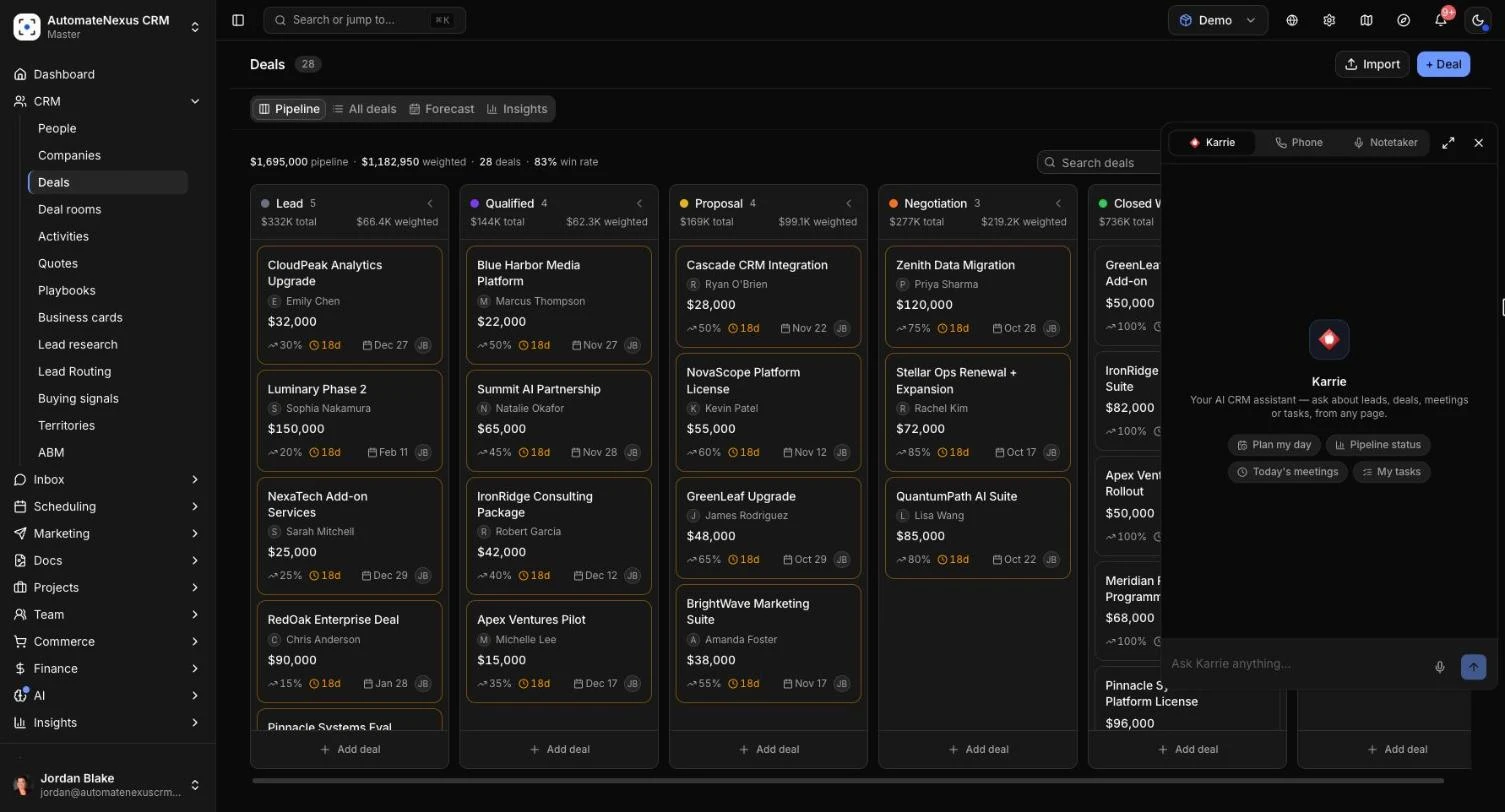
Karrie is the AI assistant built into AutomateNexus CRM. Ask her anything about your CRM in plain words and she answers from your own records: your people, companies, deals, meetings, tasks, tickets and knowledge base. Ask her to do something and she does it, from booking a meeting to building a workflow, and anything that would reach a customer or a teammate waits for your yes first. You can type to her or talk to her, dictate into any box in the app, and start each day with her brief of what matters most. This guide is for everyone on the team and takes about 10 minutes to read.
Before You Start#
- Karrie runs on your workspace's own AI key or on AI credits, like the other AI features. See AI Provider Configuration.
- If your organization has renamed the assistant (under white label), every screen uses that name instead of Karrie.
- To talk to her you need a microphone and a browser that can record, such as Chrome, Edge or Safari.
Where to Find Karrie#
- The side dock: a slim bar on the right edge of every page holds Karrie, the softphone and the meeting Notetaker. Click the Karrie icon and her chat slides out. The conversation stays as you move between pages, and starts fresh when you switch organization. Press Esc to close the dock.
- The Ask Karrie card on the Dashboard: type a question in Ask about your leads, pipeline or activities…, or press a starter: Plan my day, Today's meetings, Pipeline status or My tasks. Your question opens the side dock with the answer.
- On your phone: tap + and type in the Ask Karrie box, or press its mic.
- Anywhere, by voice: press the dictation shortcut with no box selected and what you say goes to Karrie (see Dictate Into Any Box below).
Ask Karrie Anything#
- Open Karrie in the side dock.
- Type your question in Ask Karrie anything… and press Enter (Shift+Enter starts a new line).
- Watch the answer arrive as she works. Records she used are shown as links you can click to open them in the CRM.
When you are on a record, the line Looking at above the box shows it, and Karrie answers with that record in mind. Click the small cross (Ask without it) to ask about something else. While she is answering, Stop generating ends the answer early.
Some things to ask:
- "Plan my day for me."
- "How's my sales pipeline?"
- "What did I last talk about with this customer?"
- "Which deals haven't moved this month?"
- "Do I have any meetings today?"
Karrie Does What You Ask#
Tell Karrie what you want in plain words and she does it. She checks first that the record is yours to change and the time has not passed, then either does it straight away or puts a card under her answer for your yes.
What she does straight away#
Changes that stay inside the CRM are made at once, if your role allows them:
- Add a person to People, or change a person's details.
- Create a deal, owned by you.
- Change one of your follow-up tasks: mark it done, move its due date, rename it, set its priority or give it to a teammate.
- Put a meeting on your CRM calendar when there are no guests.
- Build a workflow from a sentence, for example "when the roofing form comes in, tag them RW Roofing". It is saved switched off, so nothing runs until you check it and switch it on. A tag that does not exist yet is made when the workflow is saved.
- Write an email or text campaign and save it as a draft in Marketing Campaigns or SMS campaigns. It sends nothing: you check it, choose who it goes to and send it there.
What waits for your yes#
Anything that reaches another person, or goes out in your name, appears as a card under Karrie's answer:
- Send an email she has drafted.
- Text a person or customer from the business's number.
- Book a meeting with guests, sent as invitations from your Google or Outlook calendar, or move or cancel a meeting and tell its guests.
- Message a teammate in team chat, in your name.
- Put someone into a workflow that is switched on.
- Have an AI agent call someone for you.
Read the card, then press its approve button (for example Approve & send or Approve & call). Press Edit to change the wording first, and the button becomes Approve with edits. Press Not this one to turn it down. After you decide, the card shows a short countdown with Undo in case you change your mind.
If your role cannot approve that kind of action, the card says Waiting for an admin to approve. Every card also waits in AI → Agent Approvals; Review on a card opens it there.
Calls#
When you ask Karrie to call someone, she asks each time how you want it done:
- You call: she finds the number and shows it with a Call button. Nothing rings until you press it, and then the softphone in the side dock rings them.
- An AI agent calls: she writes what the call is for and its first line, as a card you approve with Approve & call.
Ask AI on Any List#
People, Companies, Deals and the other record lists have an Ask AI button above the list. It answers questions about the rows in front of you, with your current filters applied.
- Filter the list to the records you care about.
- Click Ask AI. The box says how many records it is asking about.
- Type a question, such as "Which should I prioritize?", or click a suggestion such as What needs attention? Then click Ask.
Where your role allows bulk changes, you can also tell it to update the rows, for example "set stage to Nurture for the stale ones". It shows what it will change and how many records first. Click Apply to make the change, or Cancel. A delete is shown the same way with a Delete button, and cannot be undone.
Talk to Karrie#
Press the mic in Karrie's box (Talk to Karrie), on the Ask Karrie card or in your phone's Ask Karrie box, and speak. What you said goes to Karrie, and she answers aloud.
- Hold to talk: hold the mic while you speak and let go to send.
- Hands-free: tap the mic once and speak. Your words are sent when you pause, or when you tap the mic again.
- Cancel: press Esc, or the cross on the listening bar.
While she reads her answer, the line Karrie is talking shows Stop and Don't read answers aloud. Talking again also cuts her off. Long answers are read in part and the rest is on your screen. A question you typed always gets a written answer only.
Choose her voice#
- Go to Settings → Voice.
- Under Karrie's voice, choose Warm, Bright, Calm or Deep. Press the play button beside a voice to hear it.
- Turn Read answers aloud when I talk to Karrie off if you only want written answers.
The card says which voice your workspace uses: ElevenLabs voices if ElevenLabs is connected, your OpenAI key if there is one, or otherwise your browser's own voice.
Dictate Into Any Box#
Write emails, notes, tasks and chat messages by speaking. Click into any text box, then press ⌘⇧Space on a Mac or Ctrl+Shift+Space on Windows and speak. Your words are typed where the cursor is, with the ums taken out.
- Hold the keys while you talk and let go to type it.
- Press quickly for hands-free, then press again when you are done.
- A bar at the bottom of the screen shows the time, your voice and where the words will go, for example Into: Subject. Press Esc to cancel.
- With no box selected, what you say goes to Karrie and she answers aloud.
- You can talk for up to five minutes in one go.
Team chat also has a Dictate mic in the message box.
Dictation settings#
Your own voice settings are under Settings → Voice, in Talk instead of typing:
- The shortcut works in every box: turn it off to use only the mic buttons.
- Tidy my words: takes out the ums and false starts, and applies a correction you say aloud ("no wait, Thursday"). Turn it off to get exactly what was heard.
- Try it: a practice box to test the mic.
Under How your words are written down, the card says which service turns your speech into text. Speech is written down with your workspace's own Groq, OpenAI or Deepgram key, added under Administration → Integrations. With no key, or with Only on this device switched on, it is done on your own computer and your voice is never sent anywhere. The first time downloads the speech model (about 240 MB, kept by the browser); click Get it ready now to download it in advance.
Karrie's Daily Brief#
Every morning Karrie writes each person a brief: up to nine priorities ranked by what they are worth and how urgent they are, with the reasons each one is on the list and this month's forecast. Each workspace gets its own brief, so someone in several workspaces sees each one's brief there.
Read your brief#
- Open the Dashboard. Under the header, press Karrie's brief to open it.
- Click a row to open its record.
- Read the line under the list: the amount weighted to close this month against last month, the deals that have stalled and the hot leads waiting.
- Click Refresh brief to rebuild it from the pipeline as it is now.
Choose when and how it arrives#
On the Dashboard's Today card, open Brief delivery settings and choose a Time and a Method: In-app, Email or Push notification. The time is in your own time zone. Email me this brief sends today's brief to your email address now.
Send Karrie's Follow-ups From the Brief#
When a priority needs an email, such as a follow-up on a deal, a meeting recap or chasing a quote, the row has a button for it. Karrie writes the email right there and you send it.
- Press the row's button. Karrie writes the draft in the row.
- Read it. Press Edit to change it if you like.
- Press Approve & send.
Write the follow-ups at the foot of the brief writes every follow-up still to write in one go; each waits in its row for your yes, and nothing is sent until then. When several drafts are waiting, One by one opens them in AI → Agent Approvals.
A follow-up you asked for on a record you can edit is yours to send, without waiting for an admin. Once it has gone, the email is on the record's timeline, the contact counts as contacted, and the row says so, for example Followed up today at and the time, instead of asking again.
Settings for Owners and Admins#
Under Settings → Notifications, owners and admins find Daily brief and lead scoring:
- Daily brief: turns the brief on or off for the workspace.
- Ready by (default): the time the brief is ready when someone has not chosen their own, in each person's own time zone.
- A deal is stalled after: how many days without activity count as stalled.
- Score every new lead, A lead is hot at and Draft a first note: how Karrie scores leads and drafts a first email when one turns hot. See Lead Routing & Scoring.
- Read each new lead's message: Karrie reads what a new lead wrote and moves its score by up to 15 points.
- Draft a recap after each meeting: Karrie drafts the recap email after a meeting, and it waits for a yes.
Click Save settings. The next brief and the next lead use them.
Tips#
- Be specific about people and times: "book 30 minutes with this customer next Tuesday at 10 with a Google Meet link" gets a ready card in one go.
- Before approving an email or text, check for anything left to fill in. A draft with a gap such as [Your name] is not approved until you fill it in.
- Use Ask AI on a filtered list for quick bulk tidy-ups, and Karrie for anything that spans the whole CRM.
Troubleshooting#
- "The microphone is blocked": allow the microphone for this site (the icon at the left of the address bar), then try again.
- "No microphone found": plug one in, or choose one in your computer's sound settings.
- "This browser cannot record": try Chrome, Edge or Safari.
- "I didn't hear anything" or "I didn't catch that": check the microphone and try again, a little closer to it.
- The shortcut does nothing: check that The shortcut works in every box is on under Settings → Voice.
- "Copied what you said": the box you were dictating into closed while you spoke, so your words are on the clipboard. Paste them where you want.
- Karrie answers in a robotic voice: your workspace has no ElevenLabs connection or OpenAI key, so the browser's own voice is used.
- "Not approved yet": the draft still has a gap to fill in. Press Edit, fill it in, then approve.
- A card says "Waiting for an admin to approve.": your role cannot approve that action. An owner or admin can approve it in AI → Agent Approvals.
- "Nothing to write" on the brief: every follow-up is already written or sent, or the record has no email address.
- "Could not load your brief.": refresh the page. If it keeps happening, check that the daily brief is switched on under Settings → Notifications.