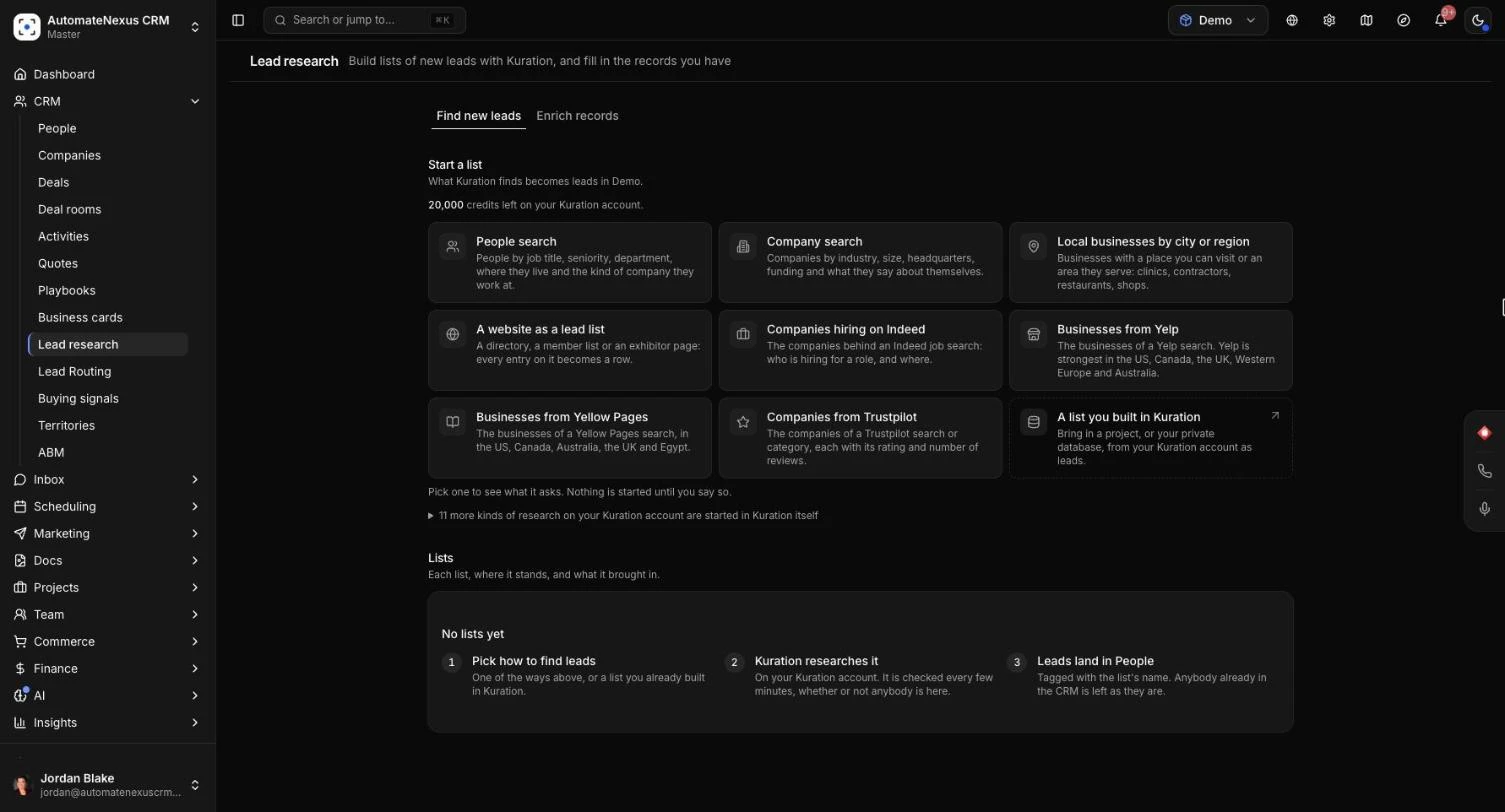
Lead research finds new people and companies that match the customers you want and brings them into AutomateNexus CRM as leads. It also fills in the people and companies you already have: job titles, LinkedIn profiles, company size, funding and more. Both run on your own Kuration account, connected once by an owner or admin, and Kuration bills that account for the research. Connecting takes about five minutes; a list of leads can take minutes or hours to come in, depending on its size.
Before You Start#
- A Kuration account with API access. Create an API key in Kuration under Administration → Integrations → API. API access has to be switched on for your Kuration account.
- Owner or admin. Only owners and admins connect Kuration, start research and choose how records are enriched. Everyone else can see the lists and, if allowed, send records to be enriched.
- An ideal customer profile (recommended). The research forms are filled in from your workspace's ideal customer profile, which is kept under AI → AI Team on the SDR tab. Without one, the forms start empty.
- Kuration credits. The page shows how many credits your Kuration account has left before you start. To top up, use Add credits in Kuration.
Step 1: Connect Kuration#
- Go to Administration → Integrations and open the Automation tab.
- Under Lead research, open the Kuration card.
- Paste your key into API key and click Save. The CRM checks the key with Kuration and tells you if it is recognised.
- Make sure the switch on the card is on. Click Check connection at any time to test it again.
- Optional: switch on Hear from Kuration the moment a record is done, copy the Webhook address into Kuration and save the Signing secret from Kuration. Without it, the CRM asks Kuration for results every few minutes instead.
When the connection is switched off, the key stays saved but nothing is sent to Kuration or read from it.
Find New Leads#
Go to CRM → Lead research. The page has two tabs: Find new leads and Enrich records. You can also click Find leads at the top of People to get here.
Start a list#
- On Find new leads, under Start a list, pick a way of finding leads. Which ways you see depends on your Kuration account. They can include People search (by job title, seniority, department, location and the kind of company), Company search (by industry, size, headquarters and funding), Find new companies (describe who you sell to in a sentence or two), Local businesses by city or region and A website as a lead list (a directory or member list where every entry becomes a lead).
- The form opens, filled in from your ideal customer profile. Change anything you like; the profile itself is not changed. Click Edit the profile to change the profile instead.
- Give it a List name. Every lead it brings in is tagged with this name.
- Click Start research. A summary shows what will be asked and how many leads, and reminds you that Kuration bills your account. Click Start research again to go ahead, or Not yet to go back.
A single list can ask for up to 1,000 leads. Some kinds of research on your Kuration account can only be started in Kuration itself; the page lists them under a fold, and you can build them in Kuration and bring them in as below.
Bring in a list you built in Kuration#
- Under Start a list, choose A list you built in Kuration.
- In Bring in a list from Kuration, use Find a project by name and pick a project, or your Kuration Private Database.
- Check its first rows and columns, give it a List name, and click Bring in.
If Kuration is still building that project, what is there comes in now and the rest as it is found.
What happens next#
- Kuration researches the list on your account. The CRM checks on it every few minutes, whether or not anyone has the page open, and leads land in People as they come in.
- New leads arrive as people and companies, tagged with the list name. Anyone already in the CRM is left as they are.
- The leads land in the workspace you have open when you start the list.
The Lists#
Under Lists, each list shows where it stands, who started it, when, and what it brought in.
- Check now: ask Kuration for the latest while a list is still running.
- Stop: nothing more is brought in from that list, and it cannot be picked up again. Leads that already came in stay, and Kuration's research stays in the project on your Kuration account.
- Check for new rows: on a finished list, bring in rows that were added to the Kuration project since. The page tells you how many new leads came in, or Nothing new.
- Details: see what was asked (Asked Kuration for), the leads added with their lead scores, who was Already here, and who was Skipped. Click Open them in People (or Open them in Companies) to see the whole list, filtered by its tag.
Enrich the Records You Have#
Enrichment fills in what is missing on people and companies already in your CRM. It fills empty fields; anything a person typed or changed stays as it is. Whatever Kuration finds that the record has no field for is kept in a note on the record.
What can be filled in#
- People: Job title, Headline, Seniority, Department, Mobile, LinkedIn, X (Twitter), location, and Email status (whether their email address takes mail).
- Companies: Industry, Size, Employees, Founded, Ownership, Sells to, Specialties, Technologies, Hiring, Total funding, Last funding round, Last funding date, Annual revenue, and their LinkedIn, Facebook, Instagram, X and YouTube pages.
Choose how records are enriched (owners and admins)#
- Open CRM → Lead research and the Enrich records tab.
- Under How records are enriched, there is a card for People and one for Companies. By default they use Kuration lookups: nothing to set up, Kuration looks each record up with its own tools.
- To have your own Kuration research filled in instead, click Use a project instead and pick one of your Kuration projects. Each card then shows what is Sent for each record and what is Filled in when found. Click Stop using to go back to Kuration lookups.
- Under Also looked up, switch on extras if you want them: Hiring and who they sell to, Funding, Revenue and Social pages for companies; Profiles found by email and Mobile numbers for people. Mobile numbers are off until you switch them on, and Kuration bills each one it finds.
- Set Who can send records to Kuration: Anybody who can edit the record, or Owners and admins only.
Enrich one record or a few#
- One record: open the person or company and click Enrich. A line on the record shows Kuration's progress, then what it filled in.
- A few: tick them in People or Companies and click Enrich in the selection bar.
- A new person: in the new person dialog, tick Enrich with Kuration once added.
Before anything is sent, a dialog shows what will be looked up. Click Send to Kuration to go ahead.
Enrich a whole list with Enrich all#
- In People or Companies, filter the list to the records you want (or leave it as it is).
- Click Enrich all at the top of the list. It sends every record the list shows that you are allowed to change.
- Choose Only those not enriched yet (records Kuration filled in before are left alone) or Every one of them (records enriched before are looked up again and what is missing is filled in).
- Click Send to Kuration.
Kuration looks records up a few at a time, so a long list can take hours. It carries on without you, each record fills in as it is done, and the sending is listed under Lead research.
Enrich without anybody asking#
On the Enrich records tab, the Without anybody asking card lets an owner or admin set:
- Enrich new leads as they arrive: a lead is sent to Kuration the moment it is added. Imports, sample data and leads Kuration itself found are never sent. Under Which new leads, choose where they came from: Your website, Chat and WhatsApp, Added by hand, Other tools and the API, AI agents or Anywhere else. Tick Their company too to enrich a company the first time it is seen.
- Refresh records enriched before: Never, or every so many days. What is still empty is filled, what Kuration filled before is brought up to date, and anything a person typed or changed stays.
- At most a day: a cap on everything sent without a person pressing Enrich (new leads, refreshes, workflows and AI agents). Past it, nothing more is sent that day. Records sent by hand do not count.
Each form can also say what happens to its own leads. In the form builder's settings, under Enrichment, set Leads from this form to follow the rule above, Always enriched or Never enriched.
Follow and undo an enrichment#
Under Enriched on the Enrich records tab, each sending shows where it stands and what it filled in.
- Check now asks Kuration for the latest.
- Take back the unsent stops records that have not gone to Kuration yet.
- Undo empties every field that still holds what Kuration filled in, or puts back what it replaced, and removes the note it left. A field someone has changed since is left alone. You can undo a whole sending, one record from Records, or a single record from the Undo button on its own page.
Undoing changes your records, not Kuration's bill: the research has already been done.
Tips#
Troubleshooting#
- "Connect Kuration to research leads": Kuration is not connected yet. An owner or admin connects it under Administration → Integrations → Automation.
- "Kuration is switched off": the key is saved but the connection is off. Switch it back on on the Kuration card.
- "Owners and admins start research": research uses the organization's Kuration account, so only owners and admins can start a list. You can still see every list brought into your workspace.
- "Kuration found nothing for this search": loosen the filters (a wider area, more job titles, a bigger company size range) and start a new list.
- "This research added nobody new": everyone it found was already in your CRM. Open Details to see them under Already here.
- "No project chosen. Until one is, people cannot be enriched.": choose a project, or go back to Kuration lookups, on the Enrich records tab.
- "Nothing was sent to Kuration": the message says which records were left out and why, for example records you are not allowed to change.
- Research stops part way: check your Kuration credits on the Find new leads tab and add more in Kuration.