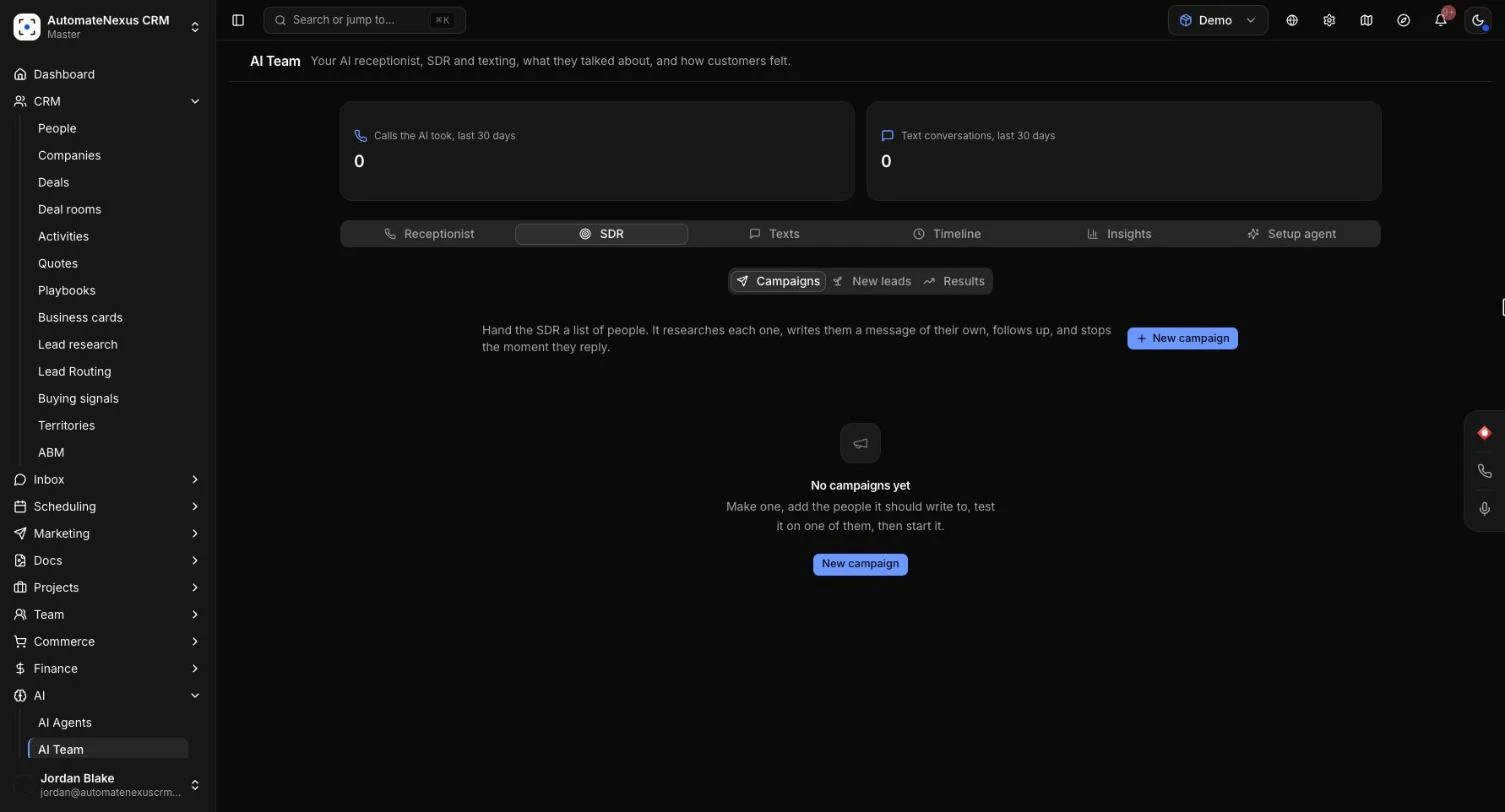
An AI SDR campaign hands a list of people to your AI sales rep. It researches each person first, writes them a message of their own built on a fact it can point to, follows up on the schedule you set, and stops the moment they reply. When someone wants to talk, it offers real free times and books the one they pick. This guide is for owners and admins who set campaigns up, and for anyone who wants to read the results. Allow about 15 minutes for your first campaign.
Before You Start#
- Who can make and change campaigns: owners and admins. Everyone else can open a campaign and see how it is set, but cannot change it.
- AI: the SDR writes with your own AI key or AI credits. If neither is set up, a running campaign pauses itself and its activity says why.
- Your business profile: every message is built on what you write in the campaign and on your business profile. It claims nothing that is not written in one of those, so fill in your profile first.
- Channels: email goes out from a connected mailbox. Text messages need Twilio connected, and WhatsApp needs WhatsApp and Twilio. LinkedIn steps need nothing connected: they become tasks for a person on your team.
- A booking page (optional): to have it book meetings, make a booking page first under Scheduling.
Where to Find It#
Go to AI → AI Team and open the SDR tab. It has three parts:
- Campaigns: the lists of people the SDR works, each showing how many people are in it and how many were reached, replied and booked a meeting.
- New leads: the always-on SDR agent that scores each new lead against your ideal customer profile and enrols the good ones in your sequences. See AI Agents.
- Results: what your campaigns came to: replies, interested replies, meetings and the pipeline they created.
Step 1: Make a Campaign#
- On Campaigns, click New campaign.
- The campaign opens as a Draft with sensible settings already in place: an email first, then an email 3 days later, then an email 4 days later; every message waits for your yes; 20 new messages a day; 09:00 to 17:00 on weekdays. A draft writes to nobody until you start it.
- Give it a Name.
Step 2: Say What It Offers#
- In What you offer them, describe what you offer these people in a few plain sentences, for example what you do, who it helps and how long it takes to set up.
- In What a reply should lead to, write the goal, such as "a 20 minute call".
- Under Writes as, choose the teammate it writes as, or leave Whoever made the campaign. Emails go out from that person's mailbox and in their name, and replies and hand-overs go to them.
- Under Booking page for meetings, choose a booking page, or None: hand interested people to me.
- In How it should sound, describe the tone, for example "friendly and plain, no jargon, short sentences".
- In Never say or claim, type each word or phrase it must never use and press Enter after each (up to 50), for example guaranteed, free or cheapest.
Step 3: Set the Steps#
The Steps card holds the first message and each follow-up. A campaign has 1 to 6 steps.
- For each step, choose the channel: Email, Text message, WhatsApp or LinkedIn (a task for you).
- The first step goes when a person is reached first. For each later step, set how many days after the step before it goes (1 to 30).
- Click Add a step to add one, or the bin icon to remove one.
How each channel behaves:
- A text goes only to people who agreed to marketing texts, and WhatsApp only to people who opted in.
- Anyone it cannot reach on a step's channel gets an email instead, when they can be emailed. If they cannot be reached either way, it moves to the next step that can reach them.
- WhatsApp only lets a business start a conversation with an approved template. When a campaign has a WhatsApp step, enter your approved template in WhatsApp template (for people who have not written in 24 hours). Without one, those people get the step by email.
- A LinkedIn step is a task for the person it writes as, with the note written for them to send. A campaign with LinkedIn steps needs someone chosen under Writes as.
Any reply stops the steps for that person at once.
Step 4: Choose How Much It Asks First#
On the Approval and limits card, choose one of three settings:
- Every message waits for your yes (the default): each message waits in Approvals, where you can change it, send it or say no.
- You approve the first ones, then it sends on its own: set how many messages you approve first (20 to begin with, up to 200). After that it sends on its own within your limits, and still waits for you on any message it is unsure of.
- It sends on its own: it sends within your limits and hours. A message it is unsure of, or that says something on your never-say list, waits for your yes.
The setting you choose decides this, never the AI: with Every message waits for your yes, every message waits. If you say no to a message, or it waits too long and expires, that person leaves the campaign. You can add them again.
Step 5: Set the Daily Limit and Hours#
- In New messages a day, set how many new messages it may write each day (1 to 200). Messages waiting for your yes count toward the day too.
- Choose the sending hours in From and Until.
- Turn Weekdays only on or off.
The hours are where each person is (from their address), or your business's time zone when their address does not say.
Step 6: Choose What It Researches#
Before writing, the SDR reads each person's record, what they did with you (forms, pages, past messages) and up to three pages of their company's website. Every message rests on one of those facts, shown to you with where it came from.
If Kuration is connected under Integrations, you can also turn on Also look each person up in Kuration. It fills in their job, company size, funding and more before writing. Each person it looks up uses credits from your Kuration account. See Lead Research.
Step 7: Add People#
A campaign writes to people saved as contacts. Add them either way:
- By tag: on the campaign's People card, choose Everyone with a tag, pick the tag and click Add them.
- From People: click Choose on People (or go to CRM → People), tick the people you want, click Add to SDR campaign, pick the campaign and click Add. Ticking a customer adds the contacts saved under it.
- From a buying signal: on CRM → Buying signals, click Add to SDR campaign on a signal. The campaign's research reads that signal, so the message opens with the news. A signal about a company adds the people saved at that company. See Buying Signals.
Nothing is sent when you add people. Someone already in the campaign stays as they are, and people who belong to another workspace are left out.
Step 8: Test It on One Person#
- On the Test on one person card, choose someone from the campaign.
- Click Write the test.
- You see the first message it would write them, which channel it would use and, under What it found, each fact it found with where it came from. The facts it used are marked used.
Nothing is sent, and Kuration is not asked. If the message uses a word from your never-say list, the test says so. If it found nothing beyond their name, the message stays general: add more to their record or to What you offer them and test again.
Step 9: Start It#
- Click Save if you have changes.
- Click Start. A message tells you how many people it will write to, its daily limit, its hours and its approval setting. Click Start to confirm.
If something is missing, the campaign tells you before it can start, for example "Say what you offer these people." or "Add the people it writes to."
Once running, it works through the people in it every 10 minutes, within your hours and daily limit. Click Pause to stop anything more going out, and Start again to carry on.
What Happens When Someone Replies#
Any reply stops that person's steps at once, and a message to them still waiting for your yes is withdrawn. Then:
- They want to talk: it offers three real free times from the campaign's booking page over the next two weeks. When they plainly pick one, the meeting is booked on the calendar of the person it writes as, and the invite goes out by email. With no booking page or no free times, they are handed to you.
- A plain question: it answers from what your business has published and what your profile says about it, or hands them to you when those do not answer it.
- They ask not to be contacted: this is recorded on every channel, and they leave every campaign.
- An automatic reply, such as out of office: the steps carry on a few days later.
- Anything else, such as an objection, a price question, "not now" or a reply it is unsure of: a task for the person it writes as.
After three answers to one person, every further reply goes to a person on your team. An answer is a message like any other, so with an approval setting that asks first, it waits for your yes.
Following the People in a Campaign#
The People card shows each person and where they are: Not reached yet, Waiting for your yes, Written to, Replied, Handed to you, Meeting booked, Asked not to be contacted, No reply or Stopped. For someone being written to, it shows which step is next and when.
- Click Take over to take a person off the SDR and handle them yourself.
- Click Take out to remove them from the campaign. A message to them waiting for your yes goes with them.
After the last step, people who do not answer within a few days are marked No reply. The What it did card lists the latest steps it took, newest first, such as Researched, Message sent, Message waiting for your yes and Meeting booked.
Approving Messages#
Messages that wait for your yes are in AI → Agent Approvals. Click Approvals at the top of a campaign to go straight there. Open a message to read it, change it, send it or say no. Whoever approves it, it goes out from the person the campaign writes as.
Reading the Results#
Open Results on the SDR tab to see, across all your campaigns:
- People reached, out of everyone in campaigns.
- Replied and Interested, with the share of each.
- Meetings booked.
- Pipeline created and the number of deals, in each deal's own currency.
The By campaign table breaks the same numbers down per campaign, with how many opted out. A deal counts when it is opened for one of a campaign's people after the SDR first wrote to them. When messages are waiting, a line tells you how many, with Open Approvals.
Tips#
Troubleshooting#
- "The sending hours end before they start.": set Until to a later hour than From.
- "Choose who it writes as: LinkedIn steps are tasks for them.": pick a teammate under Writes as, or change the LinkedIn steps to another channel.
- "Nobody has that tag": only people saved as contacts can be written to. Check the tag is on contacts, not only on companies.
- "... belong to another workspace and were left out.": a campaign only writes to people in its own workspace.
- Nothing is going out: check the campaign shows Running, that it is inside its sending hours (and a weekday, if Weekdays only is on), that the daily limit is not used up, and whether messages are waiting in Approvals. If your AI key or credits are not set up, What it did shows a Problem line saying the campaign is paused.
- Texts or WhatsApp went as emails: the person had not agreed to marketing texts or opted in to WhatsApp, or the campaign has no WhatsApp template for people who have not written in 24 hours.
- You cannot change anything: only owners and admins change campaigns.