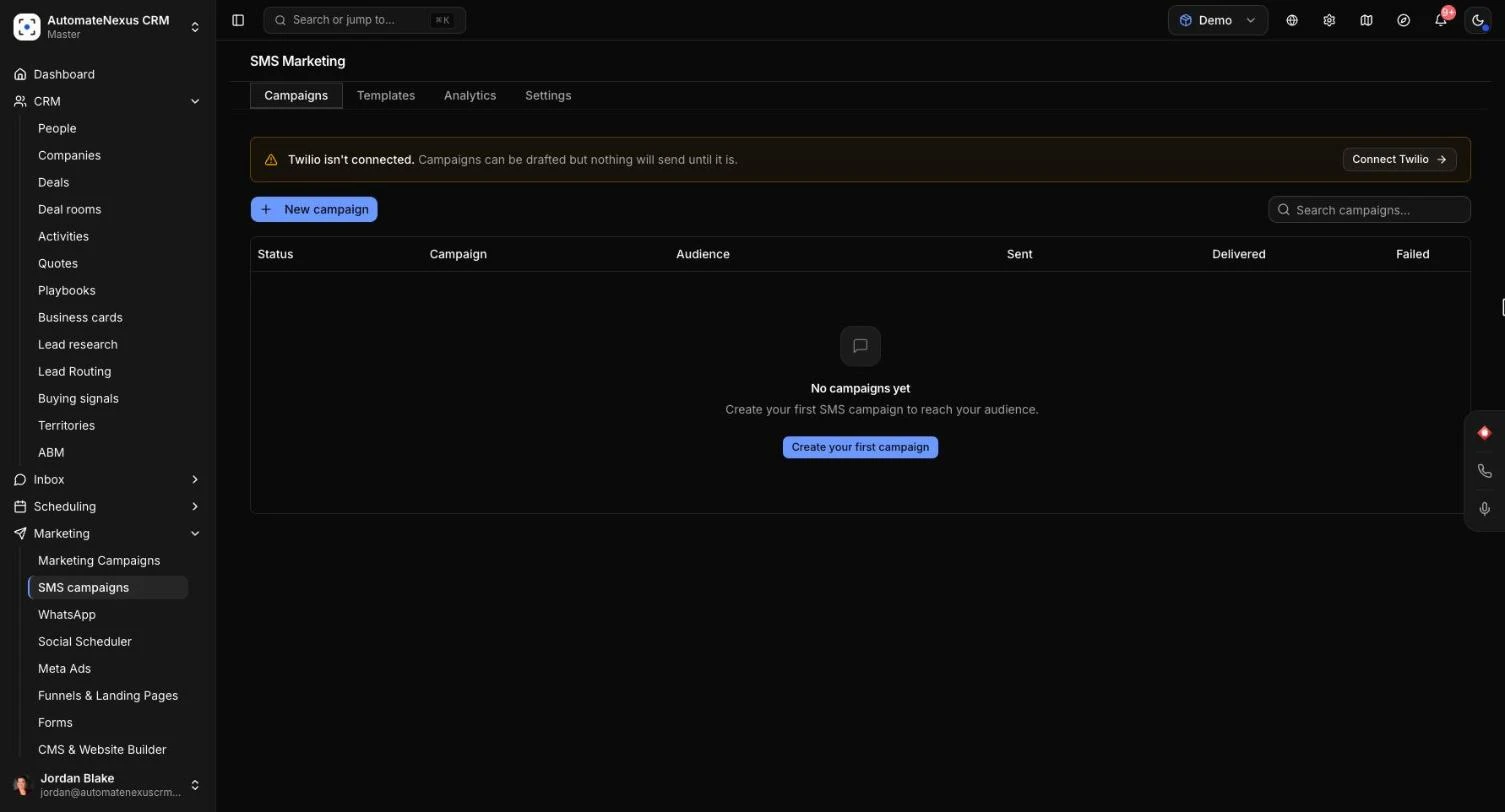
SMS campaigns in AutomateNexus CRM send one text message to many of your customers or contacts at once: a sale, a reminder, an event, news. You pick who gets it, write the message with each person's name filled in, send it now or schedule it, and then see who it reached, who it did not, and why. It is for owners, marketers and anyone on your team who sends offers and updates by text. Setting up your first campaign takes about fifteen minutes once your Twilio account is connected and your list has consent recorded.
Texts go out through your own Twilio account and from your Twilio phone number, so Twilio's charges for each message apply to that account. Campaigns are treated as marketing: they only go to people who have agreed to receive marketing texts, and never to anyone who has replied STOP.
Before You Start#
- Twilio: connect your Twilio account under Administration → Integrations → Communications on the Twilio card. Only Owners and Admins can save or change it. The same card is on the Settings tab of the SMS campaigns page.
- Module: SMS campaigns are part of the Marketing module. If you can't find them in the sidebar, check that the module is on under Settings → Modules.
- Phone numbers: only customers and contacts with a phone number on their record can be texted.
- Consent: each person you text needs SMS marketing consent recorded on their record. See Record SMS Marketing Consent below. People without it are skipped.
Connect Twilio#
- Open Administration → Integrations and choose Communications, or open the Settings tab on the SMS campaigns page.
- Open the Twilio card and fill in Account SID, Auth Token and Phone Number (the number campaigns send from, written like +1234567890). You find the first two in your Twilio console.
- Click Save. Saving all three turns Twilio on, and the card checks the keys with Twilio straight away.
- So that STOP replies are recorded, Twilio has to send incoming texts to the CRM. Numbers bought in the app are set up for this automatically. For a number you bought in Twilio, copy the Inbound SMS webhook address from the card and paste it in the Twilio console under your phone number → Messaging → "A message comes in" → Webhook, HTTP POST.
Campaigns always send from the Phone Number on the Twilio card. Step 1 of the campaign builder shows it under Sending from.
Record SMS Marketing Consent#
A campaign only texts people whose record has SMS marketing consent switched on. Record it only for people who really agreed to receive marketing texts from you.
For Many People at Once#
- Open CRM → People and tick the people who agreed.
- In the bar that appears, click SMS consent.
- Choose Record consent.
- Fill in Where was consent obtained?, for example "website sign-up form" or "signed service agreement". It is required. Keep the actual form or record wherever it lives.
- Click Record consent. A message confirms how many people were updated.
To take consent away, choose Withdraw consent in the same dialog instead. That stops campaigns for those people. If you don't see SMS consent, your role does not have the Bulk edit permission; ask an Owner or Admin.
For One Person#
Switch on the SMS marketing consent field on the customer or contact. The SMS consent date fills itself in.
Opening SMS Campaigns#
- In the sidebar, open Marketing → SMS campaigns.
- The SMS Marketing page has four tabs: Campaigns, Templates, Analytics and Settings.
The Campaigns tab lists your campaigns, newest first, with their Status, Campaign name and the start of the message, Audience, and the Sent, Delivered and Failed counts. Use Search campaigns… to find one by name. Campaigns belong to the workspace you are in.
Create a Campaign#
Click New campaign (or Create your first campaign on an empty page). The builder has five steps: Details, Audience, Content, Schedule and Review. Move on with the Next button and go back with Back or by clicking an earlier step. Save draft saves your work at any step without sending anything.
Step 1: Details#
- Type a Campaign name. It is required and only you and your team see it.
- Check Sending from. It shows your Twilio number, or a warning if Twilio is not set up.
Step 2: Audience#
- Under Source, choose All customers or All contacts.
- To narrow it down, click Add filter:
- Status equals Active, Lead, Prospect, Customer or Churned.
- Lead score at or above a number you type.
- Check the Who will be texted box. It shows how many people have SMS marketing consent, out of how many match with a phone number, and how many will be skipped for having no consent.
Step 3: Content#
- Write your text in the Message box, or click Use a template to fill it from one of your saved SMS templates. You can search them, filter by category and preview each one before you pick it, then change the text as you like. Picking a template replaces what you had written.
- To fill in each person's details, click a field button to add it to the end of your message:
- {{first_name}}: the first name. For customers, this is the first word of the name.
- {{last_name}}: the rest of the name.
- {{name}}: the full name.
- {{phone}}: their phone number.
- Check the Preview, which shows the message for a sample person, Jane Smith.
- Watch the counter under the message. It counts the text as it is sent, with a sample name filled in and the opt-out line added. A text is 160 characters per part, or 70 when it has emoji or other special characters; longer messages are sent in several parts, and Twilio bills each part.
To keep a message for later, click Save as template, give it a name and a category. It is then listed under the Templates tab and in Use a template, and you can use it in a workflow's Send SMS step too. Only the four fields above are filled in; the builder warns you about any other word in braces, because it would be sent exactly as typed.
If your message does not already contain the word "stop", Reply STOP to opt out. is added to the end of every text when it is sent. The preview shows it and the counter includes it.
Step 4: Schedule#
- Under Send timing, choose Send immediately after review, or Schedule for later and pick the Send date & time.
- Optionally, set a Rate limit in messages per minute to send more slowly. Leave it blank to send as fast as possible. The field takes 1 to 50 messages a minute.
Step 5: Review#
- Check the summary: Campaign name, Audience, Recipients, Schedule, Rate limit and Message (characters as sent and parts per text), and read the Message preview.
- Click Send campaign, or Schedule campaign if you picked a time in the future.
The button stays greyed out until the campaign has a name and a message and at least one person in the audience has consent. A warning tells you which is missing.
What Happens When It Sends#
- Consent and opt-outs are checked at send time, for every person, so changes you make after scheduling still count.
- One text per phone number. If two records share a number, that number gets the message once.
- Numbers are read for your workspace's country. A number saved the local way is read as a number in your workspace's default country. A number that can't be read as a phone number is skipped, with the reason in the results.
- Large campaigns keep going on their own. A campaign sends in rounds and may show paused for a moment between them; it carries on by itself. If it doesn't, a Resume button appears on the list and sends to the people not reached yet. People who already got the text are not texted again.
- Up to 20,000 records are loaded for one campaign. The builder warns you before sending when more match, and the results say how many were left out.
Sending now keeps the Sending… button busy while the first round goes out, then shows Campaign sent!. A scheduled campaign shows Campaign scheduled and starts sending within about five minutes of the time you chose.
Campaign Statuses#
- draft: saved and not sent. A draft never sends on its own, even with a date set.
- scheduled: will send at the time you chose.
- running: sending now.
- paused: between two sending rounds; it carries on by itself.
- failed: a scheduled campaign that could not send, for example because Twilio is not connected. The reason shows under the status, and owners and admins are told. Open it, fix the cause, then schedule it again or send it.
- sent: finished.
Edit, Unschedule, Duplicate or Delete#
- Edit: drafts, scheduled campaigns and failed campaigns that never started open in the builder when you click their name or the pencil. On a scheduled campaign, Save changes keeps it scheduled.
- Unschedule: open a scheduled campaign and click Unschedule. It becomes a draft again and will not send.
- Duplicate: a campaign that has started sending can't be edited. Click the copy button to start a new draft from it, named with "(copy)" at the end.
- Delete: click the bin and confirm with Delete. Deleting can't be undone. You can't delete a campaign while it is sending; deleting a paused one stops the rest of the send and removes its results.
Results: Who Got It and Why Not#
Click a campaign that has started sending, or its results button, to open its results. Four tiles show how many texts were Delivered, Pending, Not delivered and Skipped. Click a tile to show only those people, and Show all to go back. Search by name or number… finds one person.
Each row shows the person, the outcome and the reason:
- Delivered: the carrier confirmed it arrived, with the time it was sent.
- Pending: "Accepted by Twilio, awaiting carrier receipt". Receipts usually arrive within a few minutes, and the results refresh on their own.
- Not delivered: the reason in plain words, for example a landline or a number that no longer exists.
- Skipped: not sent, for example "No SMS marketing consent" or "Recipient opted out".
On the Campaigns tab, Sent counts the texts Twilio accepted, and Delivered counts the ones the carrier confirmed, with any still pending shown next to it.
The Analytics tab adds up your campaigns: total Sent, Failed, a Send success rate, a Sends by campaign chart and a Campaign breakdown table.
STOP Replies and Opt-Outs#
When someone replies STOP, STOPALL, UNSUBSCRIBE, CANCEL, END, QUIT or OPT OUT to your Twilio number, the CRM records the opt-out and replies "You have been unsubscribed. Reply START to re-subscribe." Every campaign after that skips them, whichever of your numbers you send from. If they reply START or UNSTOP, they are subscribed again.
If Twilio itself refuses a text because the person replied STOP to that number earlier, the CRM records that opt-out too.
Tips#
Troubleshooting#
"Twilio isn't connected."#
The banner at the top of the Campaigns tab means "Campaigns can be drafted but nothing will send until it is." Click Connect Twilio and fill in the Twilio card. In the builder the same problem shows as "No Twilio number configured — go to the Settings tab to add your credentials."
"Saved, but Twilio refused these keys"#
Twilio did not accept the Account SID or Auth Token. Copy them again from your Twilio console and click Save. If you see "Only owners and admins can change this connection.", ask an Owner or Admin to do it.
The Send button is greyed out#
Read the warning above it: "Campaign name is required (Step 1)", "Message body is required (Step 3)", or that none of the matching people "have SMS marketing consent, so there is nobody to text". Record consent for your audience, or change the source or filters.
Many people show "No SMS marketing consent"#
They have no consent on their record, so they were skipped. Record consent only for people who agreed, then duplicate the campaign to send to them.
Every text failed with the same Twilio problem#
A red box at the top of the results names it, for example "Twilio account not registered for A2P 10DLC", "Toll-free number not verified" or "Sending to this region not enabled on the Twilio account", and says "This is a Twilio account setting, not a problem with these recipients." Where there is one place to fix it, the box says where after Fix it in:, for example Twilio Console → Messaging → Regulatory Compliance → A2P 10DLC. Fix it in Twilio, then duplicate the campaign and send it again. The Delivered column on the Campaigns tab shows a warning sign for these campaigns.
Texts show "Blocked by carrier spam filtering"#
The carrier filtered the message, usually because of its wording or sending pattern. Repeated identical messages and link shorteners are common triggers. Try plainer wording, a full link, and a Rate limit.
"This person replied STOP to this number."#
Twilio is blocking texts to that person from your number. The CRM has recorded the opt-out, so later campaigns skip them.
"Campaign is sending"#
You tried to delete a campaign while it was sending. Wait for it to finish, then delete it.
I can't edit a campaign#
Campaigns that have started sending open their results instead. Use the copy button to duplicate it and edit the copy.
Related Articles#
- Communication Integrations: connect Twilio for calls and texts.
- Communication Hub: phone numbers, one-to-one texts and replies.
- Email Marketing Campaigns: send campaigns by email.