In AutomateNexus CRM, a deal room is one web page for one deal, made for your buyer and opened on a link only they have. It holds a welcome from you, a plan you both tick off, your documents and videos, the quote to accept and sign, and a booking link, all in your business's look. You see who opened it, what they read and for how long, and you are told when they do something. Allow about 10 minutes for your first room.
Before You Start#
- A room belongs to a deal, so start from a deal under CRM → Deals. Anyone who can see the deal can see its room; people who can only view the deal see the room but cannot change it.
- To put a quote in the room, send a quote on the deal first. Draft quotes and quotes waiting for approval are not offered.
- To let the buyer book a time, make a booking page under Booking first.
- To add a file, put it on the deal's Files tab first.
- The agent and the writing helpers use AI. They run on your own AI key or on your AI credits.
Step 1: Make the Room#
- Open the deal and click the Deal room tab.
- If you have templates, pick one in Start from a template, or choose The starting plan.
- Click Make the deal room.
The tab now shows the buyer's link with these buttons: Open the studio, Send to buyer, Copy link and Preview. The More menu holds Save as a template and Make a new link. Two switches sit under the link:
- Link works: turn it off and the link opens nothing until you turn it back on.
- Ask who is visiting: visitors give their name and email once, so you know who opened it.
Make a new link stops the old link working. Send the new one to your buyer.
Step 2: Fill In the Basics on the Deal Room Tab#
Everything on this tab shows on the buyer's page as soon as you save it.
- Welcome: write the Title on the page, A short welcome from you and, if you like, A short video (optional) from YouTube, Vimeo or Loom. Click Draft with the assistant for a first draft, change anything, then click Save welcome.
- Plan: click Add step, or Draft the plan to have the assistant suggest steps you can add. For each step set a phase (such as Decide, Sign or Start), whether it is Our step or Buyer's step, Who does it and a due date. Late steps show in red.
- Your team on the room: the deal's owner is always shown. Use Add someone of your team and give each a Role on this deal.
- Documents and videos: click Add, choose Video or doc, Link or File, give it a title and click Add. YouTube, Vimeo, Loom, Google Docs, Sheets and Slides, Figma, Miro and more show right on the page.
- Quote and booking: pick the Quote to accept and sign and the Booking page. Signing the quote in the room wins the deal and makes the invoice, as usual.
- Questions: your buyer's questions show here. Type in Answer on their page and click Send; the person who asked gets an email with your answer.
Step 3: Design It in the Studio#
Click Open the studio. The studio shows the buyer's page on a live canvas. Click a section to pick it, or click any words on the page to change them. The bar across the top has:
- Edit and Preview, to switch between changing the page and looking at it.
- Desktop, tablet and phone buttons, to see the page at each width.
- View as: Every section, a role (under As someone in), or one person who has visited or been sent the room (under As one of them). The canvas then shows exactly what that role or person sees.
- Undo and redo, and Publish (see Step 5).
The panels down the left side are Sections, Add a section, Look, Personal words, Agent and Settings.
Sections#
The Sections panel lists the page in order. Drag a section to move it; the cover stays at the top. The eye button hides or shows a section. Every room starts with Cover, Next step, Who is involved, Plan, Documents, Quote, Booking and Questions.
Add a section puts a new section after the one you have picked. You can add Text, Video, Questions and answers, Customer stories, What it saves (a savings calculator the buyer can adjust), Options (two or three packages side by side), Logos, Embed, Button and Points. If you took one of the starting sections off the page, it shows under Put back. Sections you saved show under Your library.
Pick a section and its settings open on the right. Most sections let you set:
- Who sees it: pick roles to show the section only to them. With none picked, everyone sees it.
- Put it first for: for these roles it comes right after the next step.
- Background: the page, dark, or your colour, edge to edge.
- Hidden from the buyer, and Save to library to reuse the section in other rooms.
The roles are Leadership, Finance, IT and technical, Operations, Legal and procurement, Day-to-day users and Someone else. A Video section can also hold A video of its own for each person: each person sees their own, and everyone else sees the main one.
Look#
Start from one of six looks: Stone, Editorial, Midnight, Bold, Minimal and Aurora. Then change the Colour (your brand colour, a swatch or any colour), Type, Corners, Cover and Background. Turn on Show their logo beside yours to show the buyer's logo next to your own.
Personal words#
Type a word in double curly brackets, such as {{first_name}}, in any text on the page, and each visitor sees it filled in. The built-in words are {{first_name}} (their first name), {{company}} (their company), {{seller_first_name}} (your first name), {{business}} (your business) and {{deal}} (the deal). Click one to copy it.
Under About this buyer, add words of your own, such as pain_points or timeline, and write what each says. A word used on the page but still empty is marked, so nothing is missed. The agent fills these in from your calls and notes.
Settings#
Settings change the room at once, not with the draft. Here you find the link with Link works and Ask who is visiting, the access controls (see below), the room's Language (each visitor's own language, or one you choose; what you write stays as you wrote it) and Save this room as a template.
Step 4: Let the Agent Build the Room#
Open the Agent panel and click Build the room. The agent reads the deal and its activity, the meetings' notes, the AI SDR's research, the buyer's website and their buying signals, and chooses from your library. It then drafts the room for that buyer: a headline and welcome, their pain points in their own words, answers to the questions they raised, sections from your library and a look. The plan it writes waits as a suggestion for your yes.
Under What it found, every fact it used is listed with where it came from. If it found their website's colour, click Use it for the room. Nothing reaches your buyer until you publish. Click Rebuild the draft to build it again from everything new.
Suggestions after a meeting#
After a meeting or a question from the buyer, click Check for news. The agent reads what is new since it last read and suggests changes. Each waits for you: click Use it to put it in the draft, or Not now to set it aside. A count on the Agent button shows how many are waiting.
Step 5: Publish, and Bring Back a Version#
In the studio, the words, sections, look and personal words save as a draft while you work; the top bar shows Draft saved. Your buyer sees none of it until you publish.
- Click Publish in the top bar.
- Write What changed (optional) and click Publish. Your buyer sees it now, and the version before is kept.
Every publish is listed under Versions. Hover over an older one and click Bring back; it becomes your draft, ready to publish when you are.
Step 6: Send It to Your Buyer#
- On the deal's Deal room tab, click Send to buyer.
- Enter each person's name and email and, if you know it, their role. Click Add someone for more, up to ten.
- Add A note (optional) and click Send.
Each person gets an email in your business's name with their own link, so you see who opened it. You can also click Copy link and send it yourself, or have a workflow send it with the Create Deal Room step, which makes the room and passes its link to later steps as {{deal_room_link}}.
What Your Buyer Sees#
The page opens on a cover with both businesses and your video, and leads with one next step, such as Review and sign the quote or a time to book. On a phone it stays at the foot of the screen. On the page your buyer can:
- See what is new since their last visit, marked as new.
- Tick off steps, add A step of your own to the plan, and add dated steps to Google Calendar, Outlook or Apple Calendar.
- See both teams and Invite a colleague, who gets their own link by email.
- Open documents and videos in the page; PDFs open right there, page by page.
- Click Review, accept and sign to sign the quote in the room.
- Book a time on your booking page, with their name and email filled in.
- Ask a question about the whole deal or about one document.
Click Preview to see the page as your buyer does; nothing you do there is counted or sent.
Who May Enter the Room#
In the studio, open Settings and find Who may come in:
- Company only: add the buyer's email domain (such as company.com) and click Add. Only people with a work email at those companies may come in; people you send the room to always may. If the buyer has a website on record, its domain is offered with one click.
- Closes on: pick a date and the room closes at the end of that day. Click Never to take the date off.
- Confidentiality note: write a note and visitors must click I agree, open the room before they see anything. Leave it empty for none.
When visitors are asked who they are, they give their name, work email and role on the way in, so the page shows what matters to them.
Reading What Your Buyer Did#
The deal's owner (or whoever made the room) is told when the buyer opens the room or comes back, ticks a step, asks a question or books a meeting.
- In the room now: while someone is on the page, the top of the Deal room tab says so by name, and the deal's card on the pipeline shows In the room now, or when the room was last opened.
- What your buyer did: the tab shows Visits, People and Time in the room, the Time on each part, each visitor with their visits, and a Trail of what they did.
- Reading: under each file you see how many pages were read, for how long, and the page read most.
The Deal Rooms Page#
Go to CRM → Deal rooms to see every room. It has three tabs.
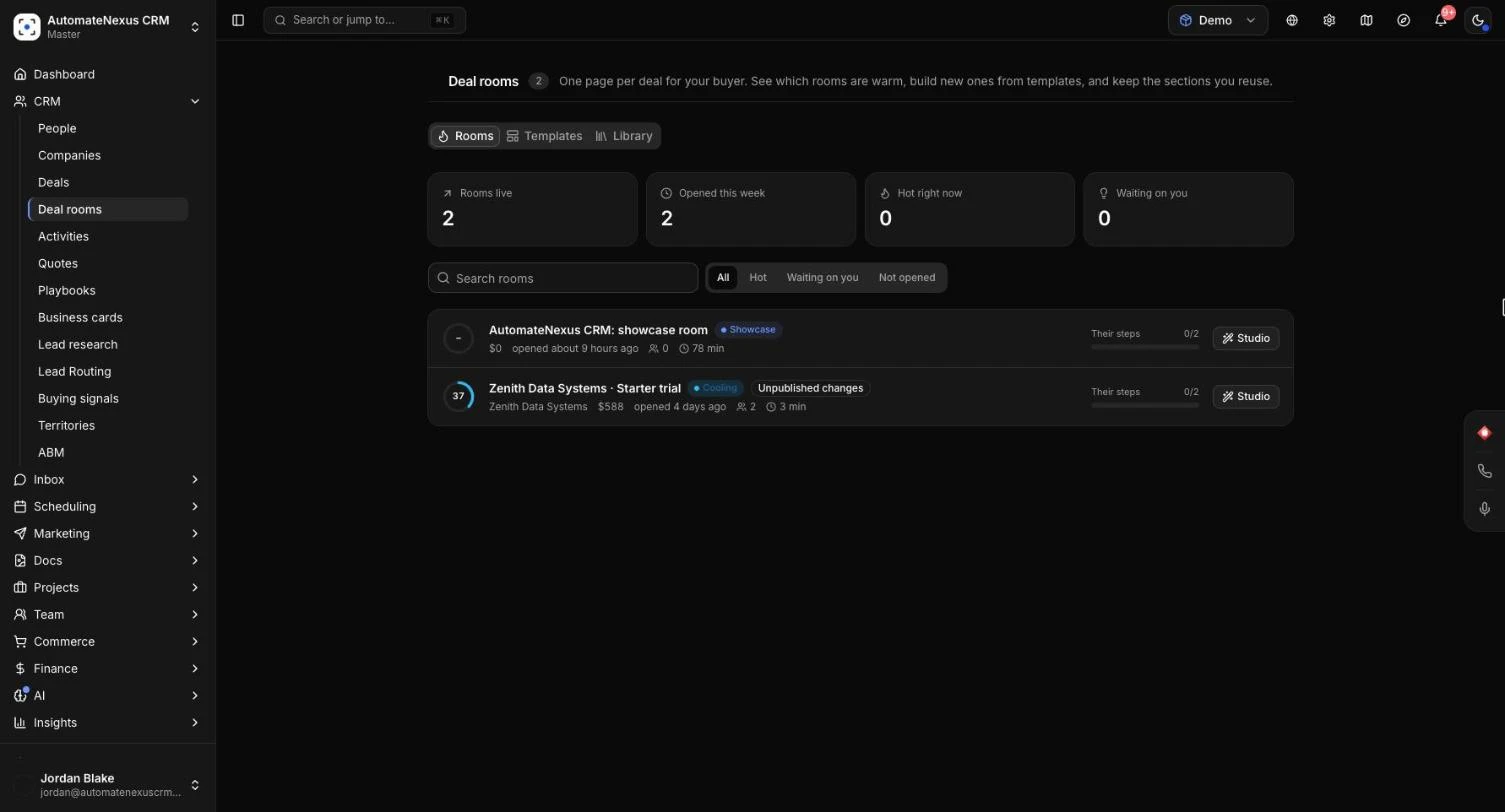
- Rooms: totals for Rooms live, Opened this week, Hot right now and Waiting on you. Each room has a warmth score from 0 to 100 and a label (Hot, Warm, Cooling, Not opened or Signed), with why: how many people, the minutes spent, questions waiting for an answer, late steps, the agent's suggestions and how many of their steps are done. Filter by All, Hot, Waiting on you or Not opened, and click Studio to open a room.
- Templates: six ready-made templates (After the first call, Proposal, Enterprise deal, Agency pitch, Renewal and Welcome aboard). Click Preview to see one full size on a desktop, tablet or phone, then Add to my templates or Use and customise. Click New template to design your own in its own studio. On each of your templates, change Builds a room only when picked to Builds a room at a stage, and every deal reaching that stage gets a room from it, ready for you to look over.
- Library: the sections you saved with Save to library, ready for every room and for the agent.
How the Deal Agent Works With the Room#
If you use the Deal agent, it reads the room too. While a buyer has been in the room lately, it sends no follow-up or quote chase to interrupt them, and the deal says it Follows up if the deal room goes quiet. A buyer's question left unanswered for a day becomes a task for the deal's owner to answer it on the Deal room tab.
Tips#
Troubleshooting#
- The buyer sees "This room is not available": the link is off or was replaced. Turn on Link works, or send the new link.
- The buyer sees "This room has closed": the Closes on date has passed. Change it or click Never.
- "This room is for people of the company it was made for. Please use your work email.": the visitor's email is not at a company under Who may come in. Add their domain, or send them the room with Send to buyer.
- Your changes do not show for the buyer: studio changes are a draft. Click Publish.
- No quote to choose: send a quote on the deal first; draft quotes are not offered.
- "The agent could not finish": check that your AI key is set up or that you have AI credits, then try again.
- "Use a YouTube, Vimeo or Loom link (or a Google document that is shared).": the welcome video is from a service the page cannot play. Use one of those, or add the video under Documents and videos as a link.