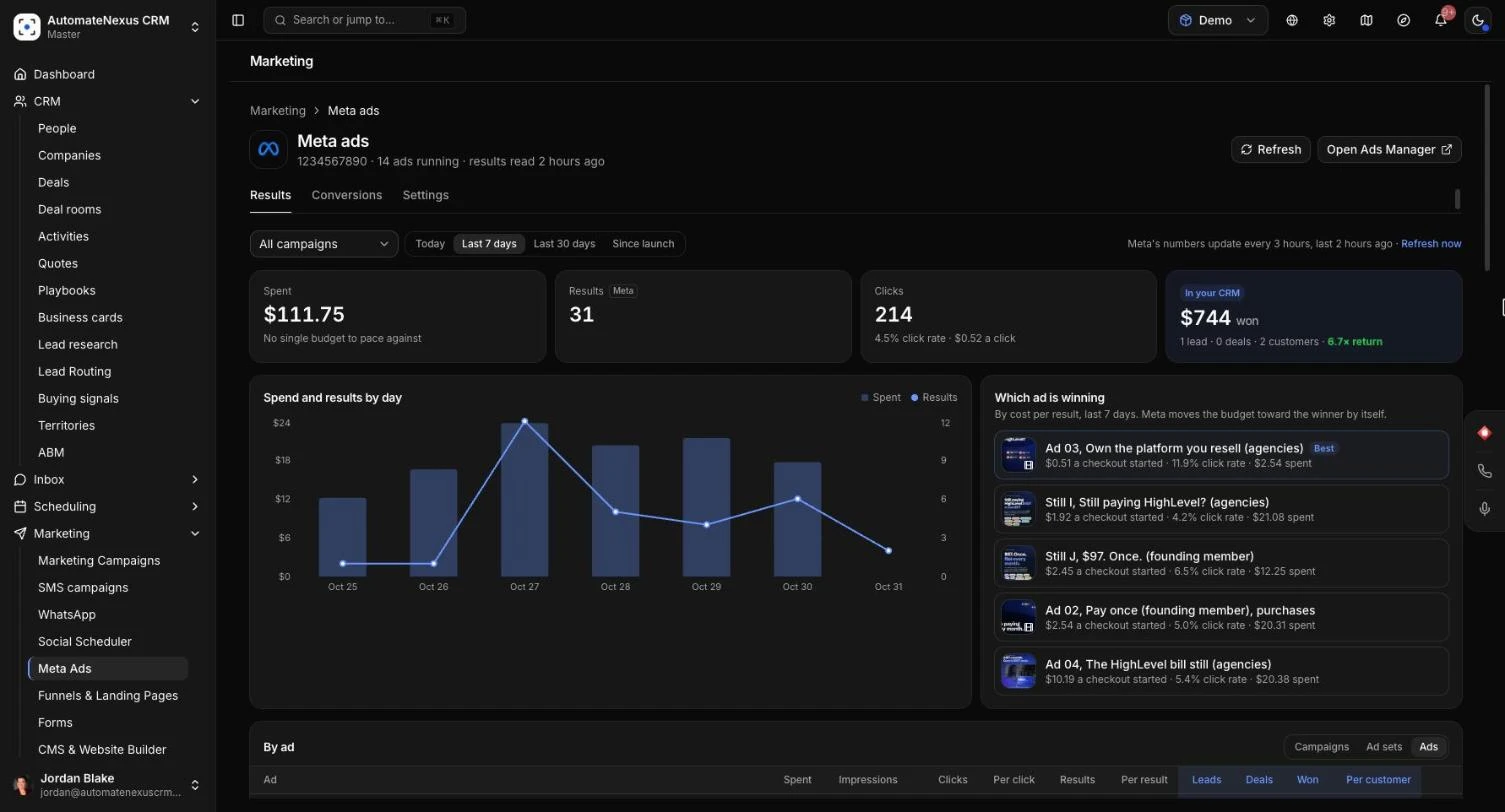
Meta Ads shows your Facebook and Instagram ads inside AutomateNexus CRM, so you can see how they are doing without opening Ads Manager. Beside Meta's own numbers, every ad shows what it brought into the CRM: the leads, deals and money won. You get alerts when something goes wrong, a summary email every Monday, and you can pause ads or change budgets from the same page. Everyone in the workspace can see the results; an owner or admin connects the ad account, which takes about 2 minutes.
Before You Start#
- You need to be an owner or admin of the workspace to connect the ad account. Anyone else sees An owner or admin of this workspace connects the ad account.
- You need admin access to your business in Meta's Business settings, where you make the token the CRM uses.
- Decide whether the CRM should only read results, or also pause ads and change budgets when you ask. This is set by the permissions you tick on the token in Meta.
Step 1: Make a Token in Meta#
Go to Marketing → Meta Ads and click Connect your ad account. The first step of the dialog walks you through making the token in Meta:
- In Meta's Business settings → Users → System users, press Add and name it AutomateNexus CRM (role: Admin).
- Press Assign assets. Under Apps, pick your app and turn on Full control. Under Ad accounts, pick your ad account and turn on Manage campaigns.
- Press Generate token, pick that same app, set it to Never expire, and tick ads_read and ads_management.
- Paste the token into the Token field in the CRM and click Next.
ads_read lets the CRM show results. ads_management also lets it pause ads and change budgets when you ask. Leave ads_management off if you want the CRM to be read-only.
The token is kept encrypted. Nobody can read it back from the CRM, not even an owner.
Step 2: Choose Your Ad Account#
- The CRM asks Meta which ad accounts the token can see and lists each one with its currency, time zone and state (Active, Payment failed, Payment due, Under review, Closed or Disabled).
- Pick the account to show and click Connect.
- The CRM reads your campaigns, ad sets, ads and the last 37 days from Meta. It takes up to a minute.
Step 3: Check What Meta Allowed#
The last step shows what the connection can do:
- Reads results: how many campaigns, ad sets and ads were found.
- Pauses ads and changes budgets when you ask, or Only reads results if ads_management was not ticked.
- Matches ads to your CRM: whether your ads tag their links so new leads are counted against the ad that brought them.
If some ads do not tag their links, click Copy them and paste the URL parameters into each ad in Ads Manager (the ad, then Tracking → URL parameters). Then click Show my results.
The Results Tab#
The page header shows the ad account, how many ads are running and when results were last read. Choose a campaign (or All campaigns) and the days shown: Today, Last 7 days, Last 30 days or Since launch.
The four figures#
- Spent: what you spent, against the budget and whether it is on pace.
- Results, marked Meta and named for what your ads aim at (leads, for example): the results Meta counted and the cost of each.
- Clicks: link clicks, the click rate and the cost of a click.
- In your CRM: the money won from your ads, with the leads, deals and customers they brought in, and the return on what they spent.
Charts and rankings#
- Spend and results by day shows spend as bars and results as a line.
- Which ad is winning ranks your ads by cost per result, with each ad's own picture, and marks the leader Best.
- The table below lists every campaign, ad set or ad (switch with Campaigns, Ad sets and Ads) with Meta's figures beside the CRM's: Leads, Deals, Won and Per customer.
What each ad brought into the CRM#
Meta counts a result only within 7 days of a click. The In your CRM columns count every lead, deal and payment an ad brought in, however long it took. That is why the two can differ, and why the CRM's figures are the better guide to what an ad really earned.
Click any row to open it. The panel shows its spend, cost per result, how often each person saw it (Frequency) and what it brought into the CRM. For an ad, People this ad brought in lists each person, how they came in and how far they got, with a link to their record. Where it ran splits spend and results by placement (Facebook Feed, Instagram Reels, Stories and the rest). If Meta rejected the ad, Meta's reason is shown with what to change.
How often results update#
Results are read from Meta every 3 hours by themselves. Click Refresh in the header (or Refresh now) to read them straight away. If they were read under two minutes ago, the CRM tells you so and waits. Open Ads Manager takes you to Meta.
Alerts#
Alerts appear at the top of the Results tab, with Open to go to the ad and Dismiss for owners and admins. Set which alerts you want on the Settings tab, under Alerts:
- An ad is rejected or stops running: Meta's reason, in plain words, with what to change.
- A payment fails or the account is restricted: nothing runs until it is fixed.
- The budget or spending limit is nearly used: at 80% of a campaign's lifetime budget or your account's spending limit.
- Cost per result jumps: when it is 2 times the 3 days before, two days in a row.
- An ad is wearing out: frequency over 3 while its click rate falls, so it is time for a new image or video.
- Stuck in "learning limited": Meta cannot get enough results to settle. This is usual with small budgets, so it is off unless you switch it on.
Under Where alerts go, choose Notifications (sent to owners and admins), Karrie's daily brief and Email to owners. The first two are on to start with. An email goes only for what stops every ad: a payment, the account or the token.
The Monday Summary#
Every Monday morning an email sums up last week: spend, results, cost per result, the best ad and what the ads brought into the CRM. Under Weekly summary on the Settings tab:
- Switch Send the weekly summary on or off. It starts on.
- Under Send to, choose Owners, Owners and admins (the starting choice) or Everyone in the workspace.
- Under When, pick the hour. It goes on Mondays in the ad account's time, at 8:00 AM to start with.
- Click Email me a sample now to see one with last week's real numbers.
Pause, Resume and Change Budgets#
If your token has ads_management, the people allowed to make changes can do it from the CRM. Each change says what it will do and waits for your confirm.
- On the Results tab, click the three-dot menu on a row, or open the row.
- Choose Pause campaign, Pause ad set or Pause ad (or Resume for a paused one), or Change budget for a campaign or ad set. On an ad, Change budget changes its ad set's budget.
- Read what will happen. A paused ad stops showing within a few minutes; a resumed one starts again once Meta has looked at it, usually within minutes.
- For a budget, the CRM reads the current budget from Meta first. Type the new daily or lifetime budget and click Change to the new amount.
When changing a budget, the dialog warns you that a change of more than about 20% restarts Meta's learning, so results can wobble for a day or two. It also warns you when your account's spending limit would be reached first. Raise that in Ads Manager under Billing & payments.
Who can make changes#
Under Changes from the CRM on the Settings tab, set Who can make changes to Owners and admins (the starting choice) or Owners only. Everyone else can see results but not change ads. Recent changes lists every change made from the CRM, who made it, and whether it was approved from Karrie.
Ask Karrie About Your Ads#
Ask Karrie "How are my ads doing?" and she answers from your real numbers: Meta's count of results, and the CRM's own count of leads, deals and money won, told apart. She can also tell you which ad is best, what you spent and what the ads brought in.
When one ad costs far more per result than the others, or is wearing out, she can suggest pausing it so the budget goes to the better ones. Her suggestion is a card that an owner or admin (or owners only, if you chose that) approves. Nothing changes in Meta until then. She changes a budget only when you ask, with the amount you name.
The Conversions Tab#
The Conversions tab holds the Meta Conversions API, which sends your CRM's leads, bookings and purchases back to Meta so your ads keep measuring results when a browser blocks tracking. It used to live under Settings, and the old address now brings you here. For setup, the match score, the event list and test events, see Communication Integrations and Multi-Touch Attribution Reporting.
Managing the Connection#
The Ad account section of the Settings tab shows the account, the end of the token, who connected it and what the token can do.
- Replace token: paste a new one, for example to add ads_management.
- Read from Meta: switch it off to stop reading results and raising alerts.
- Disconnect: removes the token and what was read of the account. Your ads keep running in Meta. The list of changes made from the CRM stays.
Tips#
Troubleshooting#
- "That is not a Meta access token": press Generate token for the system user and paste all of it.
- Meta says "No permissions available": the system user has no role on that app yet. Do the Assign assets step for it, then generate the token again.
- "Meta accepted the token, but it may not use any ad account": in Business settings → System users → Assign assets, give it your ad account.
- "Meta refused the token": replace it on the Settings tab.
- "The token can only read results": make a new token with ads_management ticked and press Replace token.
- "Meta refused: the token may read but not change this ad account": give the system user Manage campaigns on the ad account.
- "The budget changed in Meta since this was read": someone changed it in Ads Manager. Look at the new amount before changing it again.
- A budget more than 10 times the current one is refused: check the amount; a change that large is made in Ads Manager.
- The CRM columns are empty: they fill in as new leads come from your ads. Check that your ads carry the URL parameters.
Related Articles#
- Communication Integrations: the Meta Conversions API and Facebook and Instagram lead forms.
- Multi-Touch Attribution Reporting: which channels earned your revenue.
- Testing Safely Without a Sandbox: sending Meta test events.
- User Roles & Permissions: owners, admins and members.