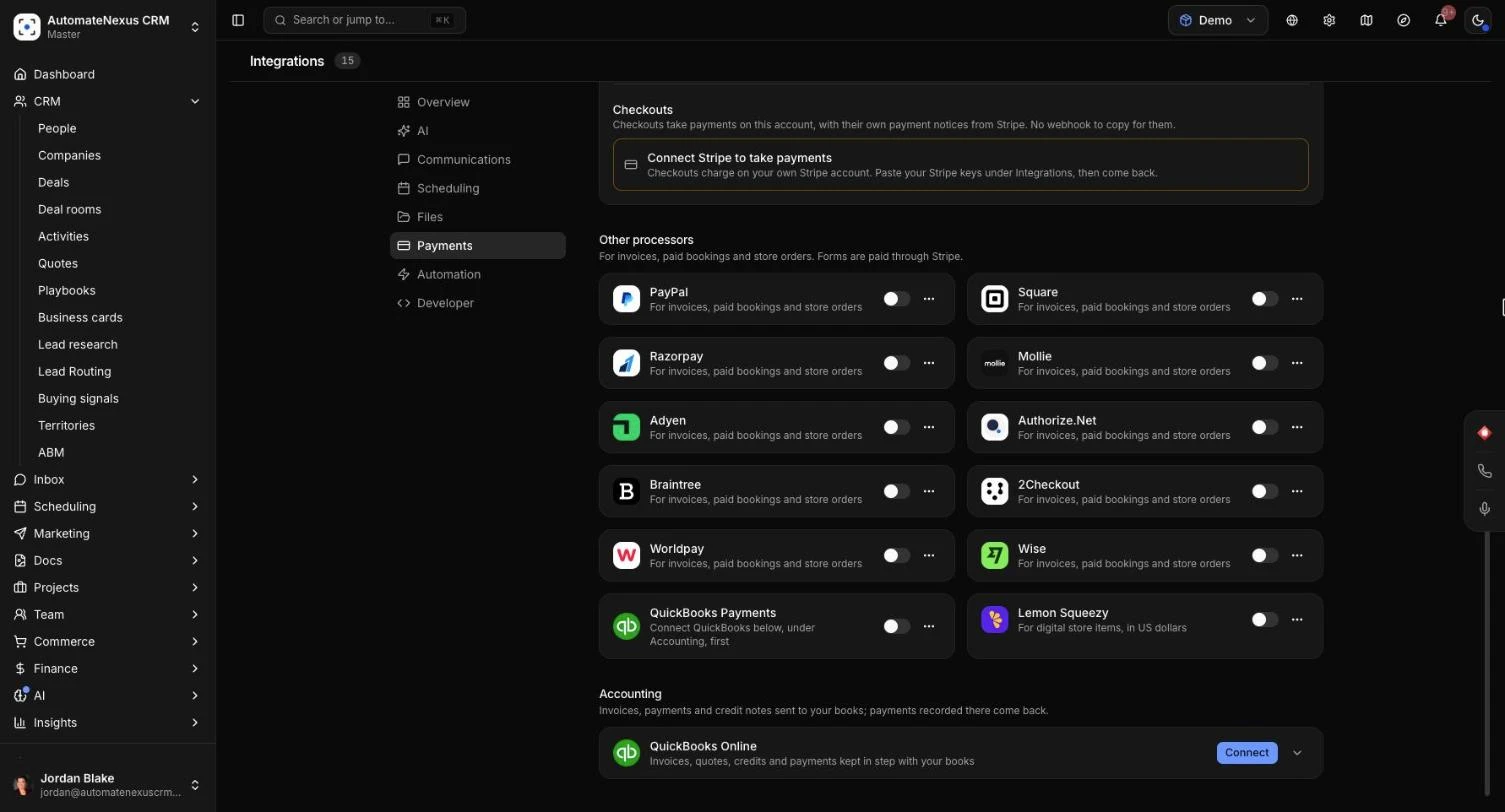
The QuickBooks Online connection in AutomateNexus CRM keeps your books in step with your invoicing, so nobody types the same invoice twice. Invoices you send, the customers on them, payments, credit notes and sent quotes go across to QuickBooks on their own, and payments recorded in QuickBooks come back and mark the invoice paid here. If someone edits, voids or deletes one of your invoices in QuickBooks, the CRM flags it so an admin can decide which version stands. It is for owners and admins, and for the bookkeeper who works in QuickBooks. Connecting takes about five minutes.
QuickBooks Online is one connection with three uses. This article covers the books. QuickBooks Payments lets customers pay invoices, bookings and store orders by card through the same connection, and QuickBooks Payroll sends your team's records and hours to QuickBooks for payroll.
Before You Start#
- Access: only an Owner or Admin of your organization can connect, change the settings or disconnect. Everyone else can see whether QuickBooks is connected, with the controls switched off.
- QuickBooks: you need a QuickBooks Online company with an active subscription. Sign in to Intuit as an admin of that company, so the connection is allowed to create invoices, customers and payments there.
- Invoice numbers: QuickBooks uses your CRM invoice numbers only if custom transaction numbers is switched on in your QuickBooks sales settings. Otherwise QuickBooks numbers the invoices itself, and the CRM shows the QuickBooks number on each invoice. The CRM checks this setting when you connect, and again each time you open the card's settings.
- Existing invoices: invoices issued before you connect stay out of QuickBooks unless you send them on purpose, so books that already have them don't get them twice. See Send Earlier Invoices below.
Connect QuickBooks#
- In the sidebar, open Administration → Integrations and choose Payments.
- Under Accounting, find the QuickBooks Online card and click Connect.
- A window opens at Intuit. Sign in, choose the company to connect and allow access.
- The window closes and you see QuickBooks connected with the company name. The card now shows the company and when it last synced, for example "Acme Ltd · synced 2 min ago". A test company shows (sandbox) after its name.
If your browser blocks the window, the page goes to Intuit directly instead. If something goes wrong, the window stays open with the reason, and you see QuickBooks was not connected. The link to Intuit lasts 10 minutes and works once; start again with Connect if it runs out.
Connecting a different QuickBooks company later starts fresh: the links to the old company's records are cleared, so nothing updates the wrong books. Reconnecting the same company picks up where it left off.
Choose What Goes Across#
Click the arrow on the card to open its settings. Each switch saves as soon as you change it.
- Send invoices (on to start): created on send, updated on change, voided on cancel.
- Send payments (on): payments recorded here are applied to their invoice in QuickBooks.
- Bring payments back (on): payments recorded in QuickBooks mark the invoice paid here.
- Sync employees (off): employee profiles become QuickBooks employees, for payroll.
- Send quotes as estimates (on): once sent. Accepted, declined and expired follow, and the invoice made from the quote is linked to its estimate.
- Send credit notes (on): as credit memos. Account credit is applied to its invoice there.
Where Amounts Post in QuickBooks#
- Invoice lines post to: the QuickBooks product or service your invoice lines use. Leave it on Create one for me and the first sync creates a service called "Services (AutomateNexus CRM)", or pick one of your own.
- Tax amounts post to: tax goes across as its own line, so QuickBooks totals match the CRM to the cent. Create one for me makes "Sales tax (AutomateNexus CRM)" on the first taxed invoice. You can point that item at your sales tax account in QuickBooks.
- Refunds are paid from: the bank or clearing account refunds leave from. Once chosen, credit notes settled as a refund go across as refund receipts from this account. Until then, refunds go as credit memos for you to pay out in QuickBooks.
- Tax code on every line: shown only for QuickBooks companies outside the US, which need a tax code on every line. Choose one before your first invoice goes across.
What Goes to QuickBooks, and When#
Changes are sent automatically every 5 minutes, so a new invoice usually appears in QuickBooks within a few minutes. Several edits made before the next sync go across as one update. Click Sync now on the card to send everything straight away.
Customers#
- A customer goes to QuickBooks the first time you send them an invoice (or a quote, with estimates switched on), not before, so prospects stay out of your books.
- If QuickBooks already has a customer with the same name, the CRM links to that customer instead of making a duplicate.
- Later changes to a linked customer's name, company, email, phone or address follow to QuickBooks.
Invoices#
- Drafts stay here. An invoice goes across when it is sent.
- Edits follow. Changing the customer, dates, lines, discount, tax, notes or total of a sent invoice updates it in QuickBooks.
- Cancelling an invoice voids it in QuickBooks. Deleting an invoice here that is already in QuickBooks voids it there too. Voided, not deleted, so your accountant can still see it was issued.
- Each invoice in QuickBooks carries a private note with its CRM invoice number, and the customer's email.
Payments#
- A payment recorded on an invoice here is applied to the same invoice in QuickBooks. If the invoice isn't in QuickBooks yet, it goes first.
- Deleting a payment here voids it in QuickBooks. A payment that came from QuickBooks is left alone there.
Credit Notes and Refunds#
- A credit note given as account credit becomes a credit memo for the customer and is applied to its invoice in QuickBooks. If the invoice was already paid in QuickBooks, whatever it can't take stays as credit for the customer.
- A credit note settled as a refund becomes a refund receipt from the account in Refunds are paid from. With no account chosen, it becomes a credit memo, and you record paying it out in QuickBooks.
- Voiding or deleting a credit note here removes its credit memo or refund receipt from QuickBooks.
Quotes#
- A quote goes across as an estimate once it is sent, and its status follows when it is accepted, declined or expires.
- The invoice made from the quote is linked to the estimate in QuickBooks.
- Deleting a quote deletes its estimate. If QuickBooks keeps it because an invoice was made from it, the estimate is closed instead.
What Comes Back From QuickBooks#
Payments Recorded in QuickBooks#
With Bring payments back on, the CRM checks QuickBooks for new payments every 15 minutes, or straight away when you click Sync now. A payment recorded in QuickBooks against an invoice the CRM sent:
- appears on the invoice here with the note "Recorded in QuickBooks", and marks the invoice paid once it is covered;
- follows QuickBooks if the payment's amount or date is changed there later;
- is removed here if it is deleted or voided in QuickBooks, and the invoice goes back to sent or overdue if it is no longer covered.
No receipt email goes out from the CRM for these payments; QuickBooks sends its own. Payments on invoices that were never sent from the CRM are not brought in.
Invoices Changed in QuickBooks#
The CRM also notices when one of the invoices it sent is edited, voided or deleted in QuickBooks. This needs Send invoices switched on. When it happens:
- The invoice shows a warning badge: Changed in QuickBooks, Voided in QuickBooks or Deleted in QuickBooks.
- For an edit, the badge says what changed, for example "Total changed in QuickBooks from 500.00 to 450.00." or "Due date changed in QuickBooks to 2026-11-30."
- Owners, admins and the person who connected QuickBooks get a notification. If a bookkeeper changes many invoices at once, they get one notification that counts them instead of one each.
- The QuickBooks card lists them under 1 invoice was changed in QuickBooks (or the number changed), each linking to its invoice.
Payments and emails sent from QuickBooks don't count as changes.
Decide Which Version Stands#
An Owner or Admin settles each flagged invoice from the invoice itself.
- Open the invoice from the notification, from the list on the QuickBooks card, or from Finance → Invoices.
- Click the warning badge next to the invoice status.
- Choose one:
- Edited in QuickBooks: Send this version to QuickBooks puts the CRM's version back on the next sync. Keep QuickBooks' version leaves QuickBooks as it is; the next change you make here is sent as usual.
- Voided or deleted in QuickBooks: Send it to QuickBooks again sends it as a new QuickBooks invoice. Cancel it here too cancels the invoice in the CRM without sending anything back.
If an invoice was edited in QuickBooks and you change it here before choosing, your change is sent and replaces the QuickBooks edit. When an invoice is sent again after being voided in QuickBooks, payments recorded against the voided one stay with it there; apply them to the new invoice in QuickBooks if they belong to it.
Check Sync Status#
On Each Invoice and Quote#
A badge next to the status shows where the record stands in QuickBooks. Hover over it to see the reason or the last sync time.
- QuickBooks invoice #1042 (or QuickBooks estimate # on a quote): it is in QuickBooks, with its QuickBooks number.
- QuickBooks: queued or QuickBooks: updating: it goes across on the next sync, within a few minutes.
- QuickBooks: retrying: the last try didn't work and it will try again. Hover for the reason.
- QuickBooks: failed: it stopped trying. Fix the reason shown, then retry from the card.
- Not in QuickBooks: it was left out on purpose, for example because it was issued before you connected.
- Voided in QuickBooks: cancelled here and voided there.
The badges don't show while QuickBooks is disconnected.
Recent Activity on the Card#
The card lists the 15 most recent items sent, each with what happened and how long ago, for example "Created QuickBooks invoice 1042 (total 250.00)." Items waiting say Waiting for the next sync; items being tried again say Retrying (attempt 2) with the reason; items that stopped say Gave up with the reason. Finished items are kept for 30 days.
When something goes wrong, the CRM tries up to eight times in all, waiting longer each time (from a minute to several hours, about half a day in all). If it still doesn't work, it shows as failed.
Retry Failed Items#
- Fix the reason shown, for example choose a tax code or change a duplicate invoice number.
- Click Retry 2 failed (the number is how many failed) on the card.
- Click Sync now to run them straight away, or let the next sync pick them up.
Sync now ends with a summary, for example "3 sent, 1 payment from QuickBooks".
Send Earlier Invoices#
Only invoices issued on or after the day you connected are sent automatically. To send older ones, for example when you start a new QuickBooks company:
- Under Send earlier invoices, pick a date.
- Click Send from this date. A message says how many invoices were queued, or "No invoices to send" when none qualify. Send invoices must be switched on.
- They go to QuickBooks on the next sync, or click Sync now.
Only sent, paid and overdue invoices that aren't in QuickBooks yet are queued, and their payments and credit notes go with them. Send earlier invoices only if QuickBooks doesn't already have them.
Disconnect QuickBooks#
- Open the card's settings and click Disconnect.
- Confirm with Disconnect, or click Keep it.
Nothing more is sent to QuickBooks, and payments recorded there stop coming back. Nothing already in QuickBooks is deleted. Reconnecting the same company sends anything that was already waiting when you disconnected, but invoices, payments and other changes made while it was disconnected are not sent afterwards, so nothing goes into books you have been keeping by hand meanwhile. Use Send earlier invoices with the date you disconnected to send the invoices, and record any payments from that time in QuickBooks yourself. QuickBooks Payments and QuickBooks Payroll stop working until you reconnect, because they use the same connection.
Tips#
Troubleshooting#
"Only an organization admin can connect QuickBooks."#
Connecting, changing settings and disconnecting take an Owner or Admin. Ask one of them, or ask for the Admin role.
"QuickBooks is not set up on this platform yet."#
The QuickBooks connection hasn't been switched on for the platform you use. Contact support.
"This QuickBooks link expired." or "This QuickBooks link was already used."#
The Intuit window was open for more than 10 minutes, or its link was used before. Close it and click Connect again.
"QuickBooks access was not granted."#
Access was declined on the Intuit screen. Click Connect again and allow it.
The card says Reconnect or "Needs to be reconnected"#
QuickBooks no longer accepts the connection, for example "QuickBooks no longer accepts this connection. Reconnect QuickBooks." or "QuickBooks no longer authorizes this app for the company. Reconnect QuickBooks." An Owner or Admin clicks Reconnect and signs in again. Items that were already waiting go across once you reconnect. Changes made while the card said Reconnect are kept, and go across once you reconnect the same company. If you connect a different company instead, none of them are sent.
"The QuickBooks user who connected does not have permission for this. Reconnect as an admin of the company."#
The Intuit user who connected isn't an admin of the QuickBooks company. Disconnect, then connect again signed in to Intuit as a company admin.
"QuickBooks already has a document with this number."#
The invoice number is already used in QuickBooks. Change the invoice number here, or turn off custom transaction numbers in QuickBooks, then retry.
"QuickBooks companies outside the US need a tax code on every line."#
Choose one under Tax code on every line on the card, then retry the failed items.
"This QuickBooks company has no active income account to post sales to."#
Add an income account in QuickBooks, or pick an existing item under Invoice lines post to, then retry.
"QuickBooks already has a customer, vendor or employee with this name."#
QuickBooks keeps one list of names for customers, vendors and employees. A new customer whose name is taken is added as "Name (Customer)". If you rename a customer here to a name that's taken, the QuickBooks name stays and the rest of the details update.
"The QuickBooks subscription for this company is not active."#
Renew the QuickBooks subscription, then retry the failed items.
An invoice says "Not in QuickBooks"#
Hover over the badge for the reason. "Issued before QuickBooks was connected" means you can send it with Send earlier invoices. "This invoice has no customer, so it cannot go to QuickBooks." means you add a customer to the invoice. "Cancelled before it reached QuickBooks." needs nothing.
A payment made in QuickBooks didn't show up#
Check that Bring payments back is on, and that the invoice was sent from the CRM. Payments are read every 15 minutes; click Sync now to check straight away.
Changes stopped going across#
Automatic syncing pauses while your organization's plan or trial has ended. Changes wait and go across once the plan is active again.
Related Articles#
- Payment Processor Setup: take card payments through QuickBooks Payments.
- Payroll: send your team and their hours to QuickBooks Payroll.
- Quotes: build and send the quotes that go to QuickBooks as estimates.
- Integrations & Marketplace: connect your other tools.
- User Roles & Permissions: who is an Owner or Admin.