Unified Inbox#
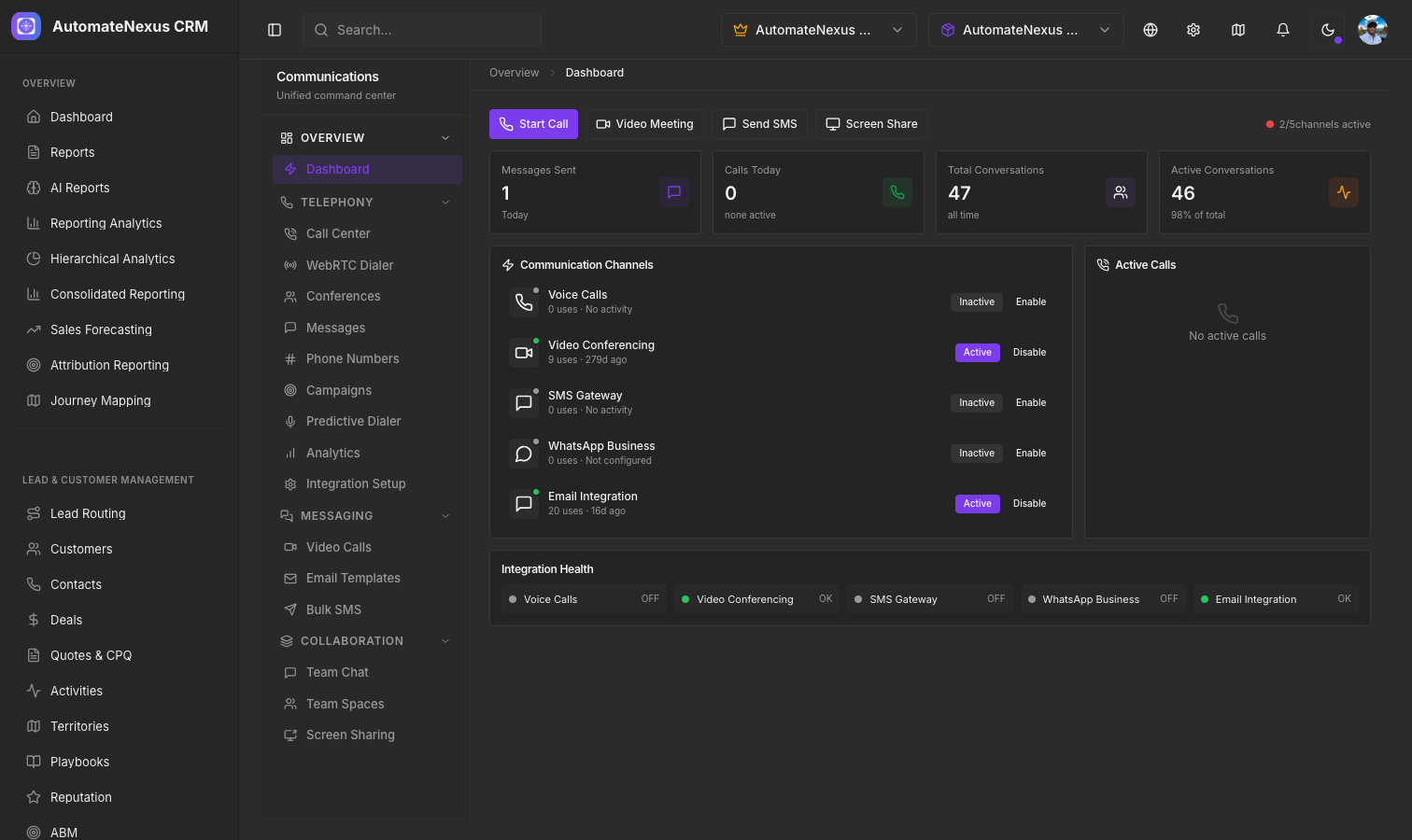
The Communication Hub brings together your customer conversations in a single interface. Open it from Inbox → Communication Hub; the page opens on the Inbox, and its left menu groups the rest: Customer (Overview, Inbox, Calls, Dialer, Phone numbers, Analytics), Marketing (SMS campaigns and Email campaigns, which open their own pages), Team (Team chat, Meetings and Spaces) and Setup (Channels, which opens Settings → Integrations). Instead of switching between email, chat and SMS tools, manage every conversation from one place.
Supported Channels#
- Email — Mail from the mailbox you connected under Settings → Integrations → Communications (Email sync), threaded with the contact it belongs to.
- Website chat — Visitors' chats from the Messenger on your website, set up under Inbox → Support Hub. Replies can be sent as a message the visitor sees or as a note only your team sees.
- SMS — Text messages to and from your Twilio numbers (Twilio is connected under Settings → Integrations → Communications; numbers are managed in the hub's Phone numbers section).
- WhatsApp — Conversations on your WhatsApp number once it is connected under Communications. After WhatsApp's free-reply window closes, only approved templates can be sent, and the composer switches to them.
- Calls — Call history alongside the other channels; the Calls and Dialer sections hold the call center and the softphone and power dialer.
Conversation Threading#
Conversations are listed with the views All, Needs reply, Unread and Mine, and can be narrowed to one channel with the channel chips or searched. Opening a conversation shows:
- Every message in the thread, marked as received, sent, delivered or read
- The contact record linked to the conversation, with Open customer to jump to it
- The customer's deals, each opening in the pipeline
Saved Replies#
Save time with saved replies. Create them under Inbox → Support Hub → Settings → Quick replies (a title and the reply text); in the composer, Saved replies inserts one into your draft. Draft a reply with AI writes a first draft from the conversation for you to edit before sending.
Notifications#
Your notification preferences live under Settings → Notifications. Push notifications for your browser and phone are set up under Settings → Integrations → Communications, in the Push notifications section.
Working a Conversation#
From any conversation you can:
- Set its status to Open, Snoozed or Closed
- Assign it to a teammate, or leave it unassigned
- Create a ticket in the Support Hub from the conversation
- Add an internal note on a website chat that the visitor never sees
- Attach a file to your reply